Availability troubleshooting
When a customer cannot see an expected time, start with the simplest checks and move step by step.
Check the service and plan
- Is the service active?
- Is the service included in an active availability plan?
- Does the plan cover the date the customer selected?
- Does the plan contain working hours or a Google Calendar source event?
- If providers are enabled, does the plan include an eligible provider?
Check the service rules
Review:
- duration and buffer;
- booking lead times;
- capacity;
- approval or access restrictions;
- provider assignment;
- service status and frontend visibility.
A working interval can exist without producing a customer slot if the service duration, buffer, or lead-time rules do not fit.
Check calendars and existing bookings
Busy personal calendar events, existing reservations, and providers already booked elsewhere can remove times that otherwise look available.
If Google Calendar is involved, confirm that the account is connected, the calendar has the right role, and the events are visible to Google Calendar as busy events.
Use the built-in tools
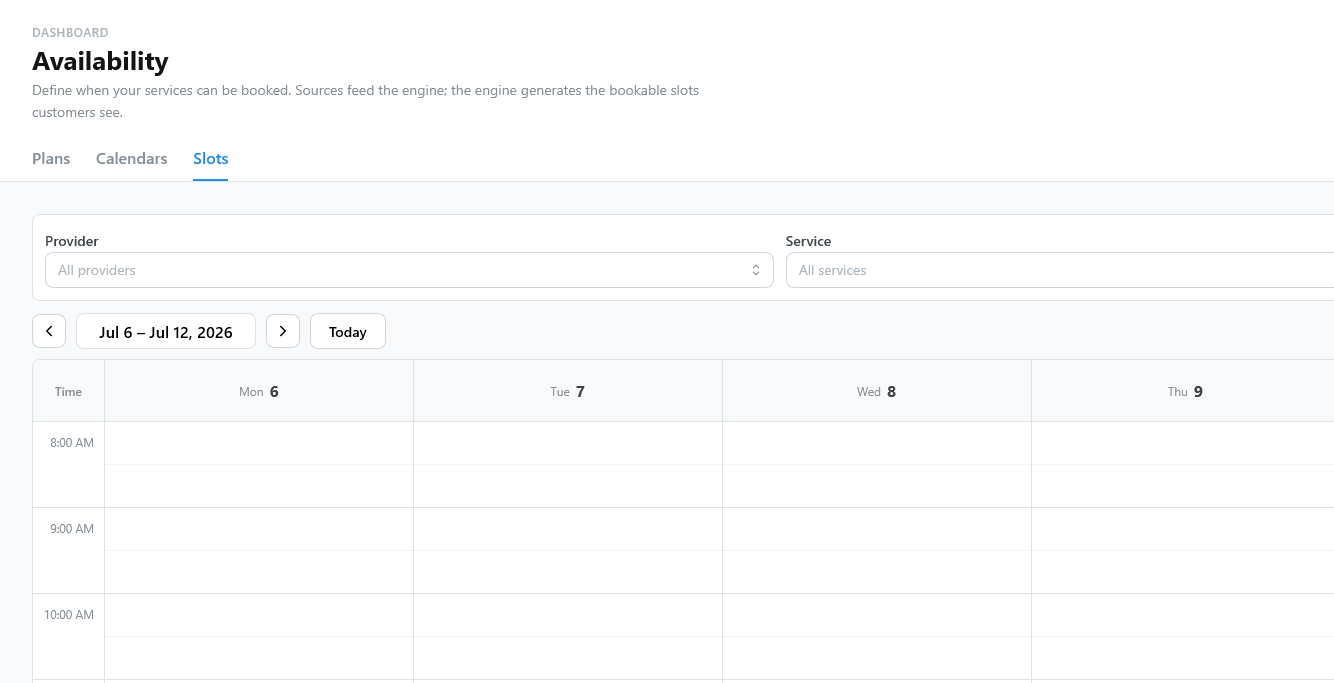
Open Availability > Slots to see the slots generated for the affected date. If a slot appears there but not in the widget, the lead times, the frontend settings, or the widget restrictions hide it. See Slots preview.
API-created reservations
The public API creates a reservation only from a slot that is still available. If a request is rejected, fetch availability again and use the current slot data.