Create a service
A service is the offer customers choose in the booking calendar: a consultation, appointment, lesson, treatment, visit, or meeting.
Each service has its own duration, price, booking form, notifications, payment rules, and customer-facing text.
Create the service
- Open TheBooking > Services.
- Select New service.
- Enter the service name.
- Save, then open the service settings.
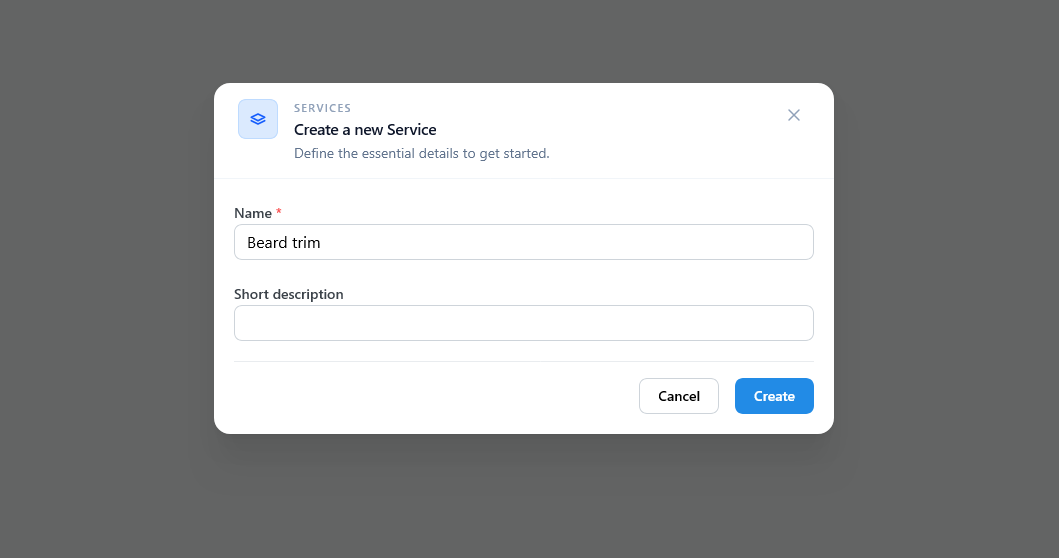
The first dialog only asks for the essentials, so you can create the service quickly and complete the detailed settings afterwards.
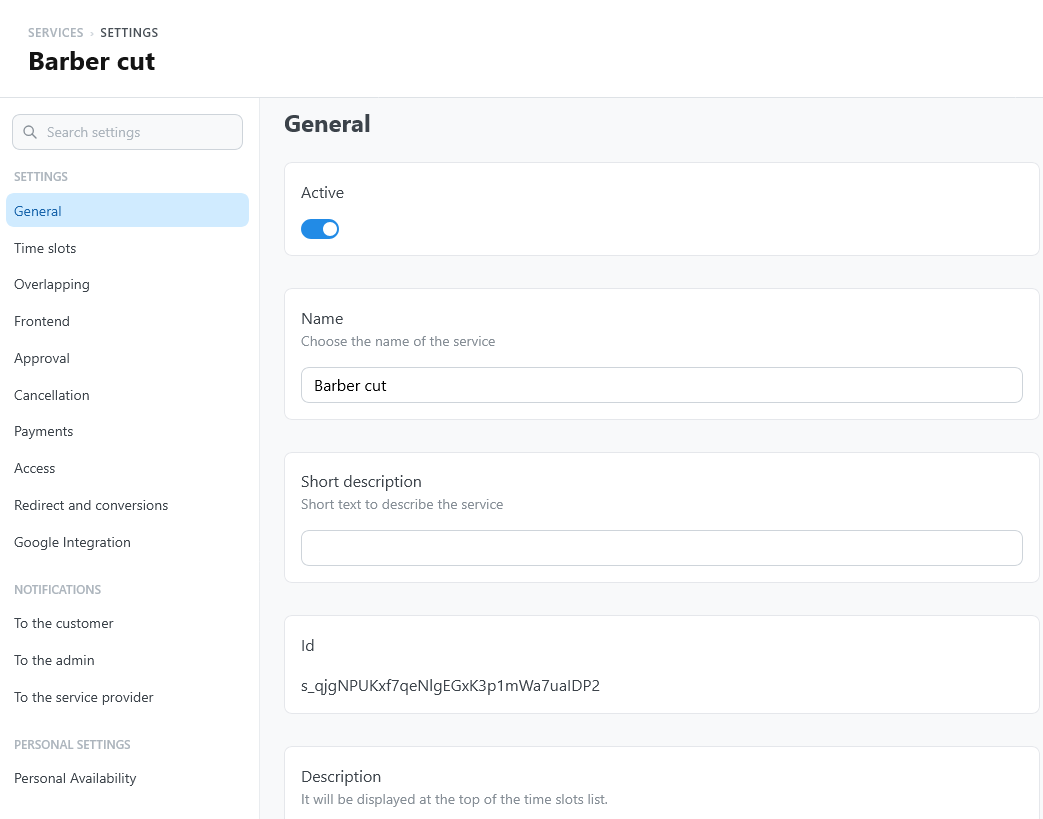
The service is not bookable yet. It needs availability before customers can select a time.
Complete the essential settings
Start with the settings customers notice first:
- General: name, description, color, location, and status.
- Time slots: duration, capacity, buffer time, and how far in advance customers can book.
- Booking form: customer name, email, phone, and any service-specific questions.
- Frontend: how the service appears in the widget.
- Notifications: messages sent to customers, administrators, and providers.
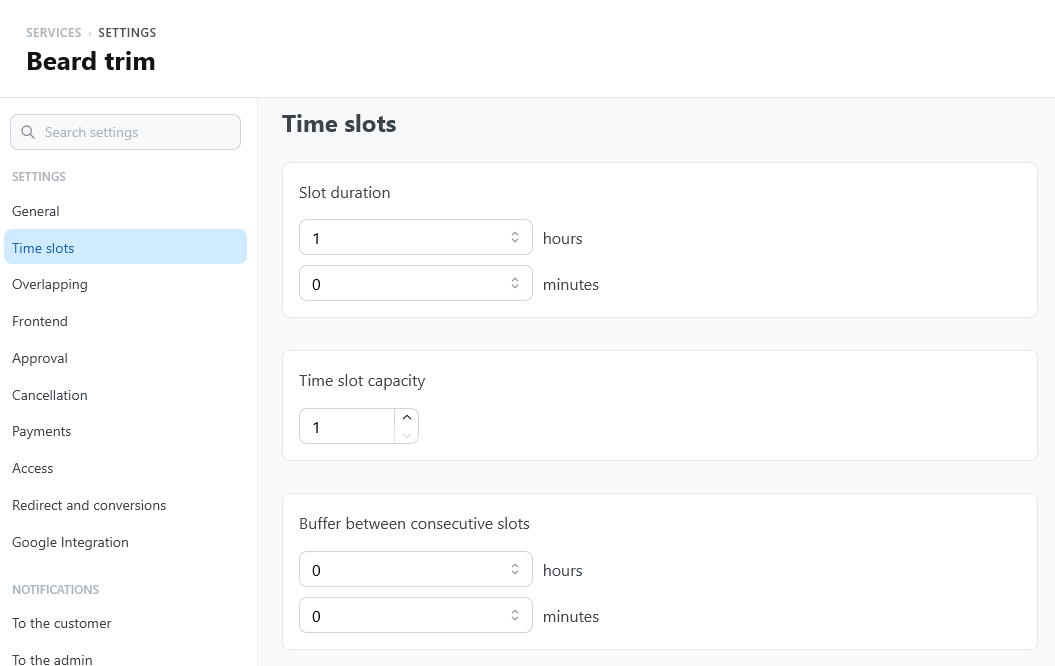
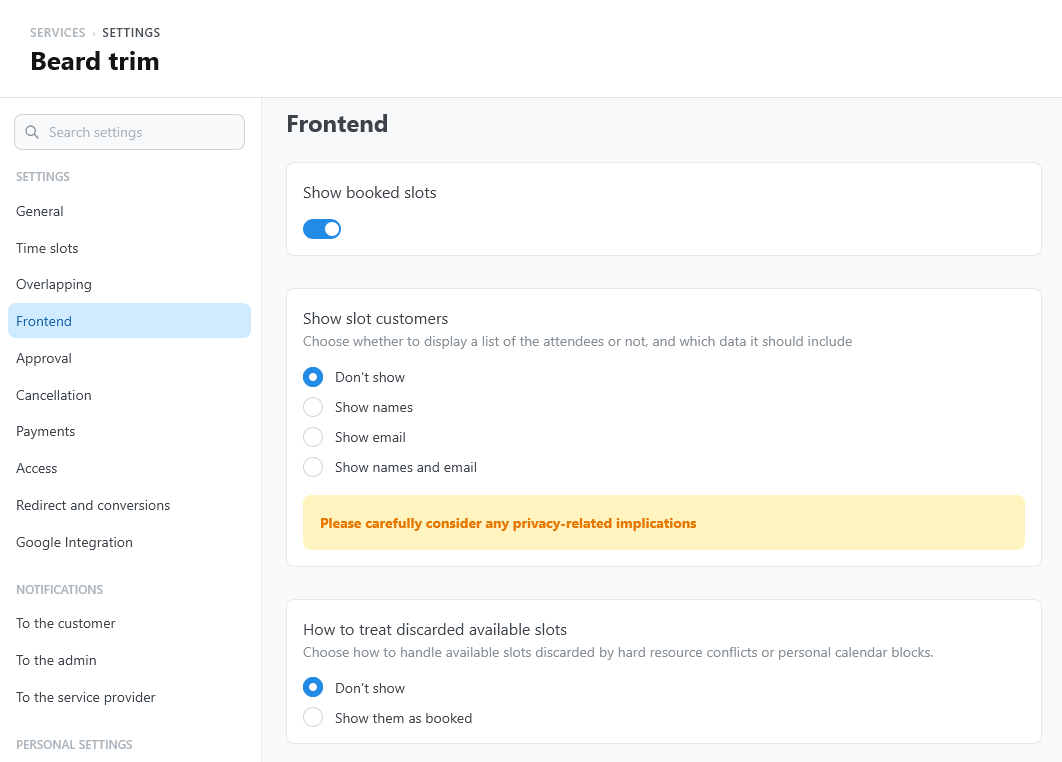
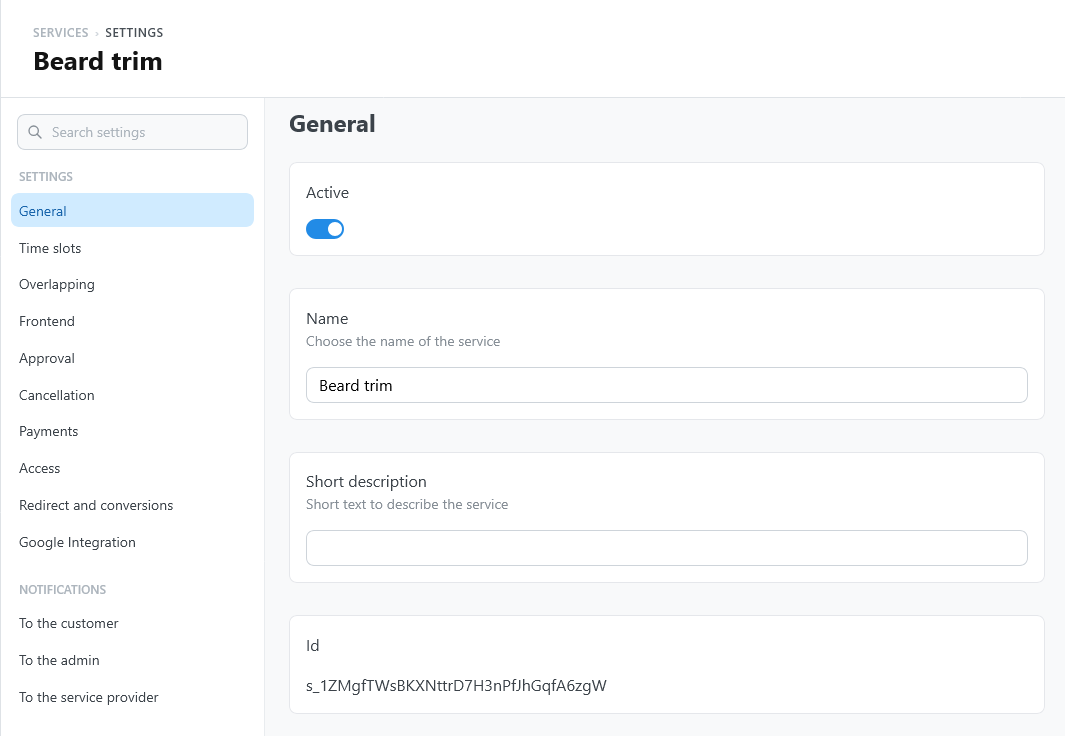
You can later add approval rules, cancellation rules, payments, access restrictions, redirects, translations, Google Calendar behavior, and provider-specific settings.
Provider assignment
If you use providers, decide how the appointment should be assigned:
| Strategy | Customer sees | Best for |
|---|---|---|
| Manual | A choice of providers | Customers care who they book with |
| First available | One team slot | Simple automatic assignment |
| Least loaded | One team slot | Sharing work more evenly |
| Random | One team slot | Distributing bookings without a fixed order |
Manual is the default because it is the easiest to understand while testing. With Manual, the service can also offer Soonest available at the top of the provider list: see Assigning appointments to providers.
Next step
Assign the service to an availability plan. A service without availability can be configured and saved, but it cannot receive bookings.