What's new in 4.1
TheBooking 4.1 brings a redesigned booking widget, a new way to start a booking from the calendar, and more ways for customers to manage their bookings.
After the update from an earlier version, a notice in the WordPress admin leads to the What's new in TheBooking page, with the same summary. The full list of changes is in the changelog included with the plugin (README.txt).
The redesigned widget
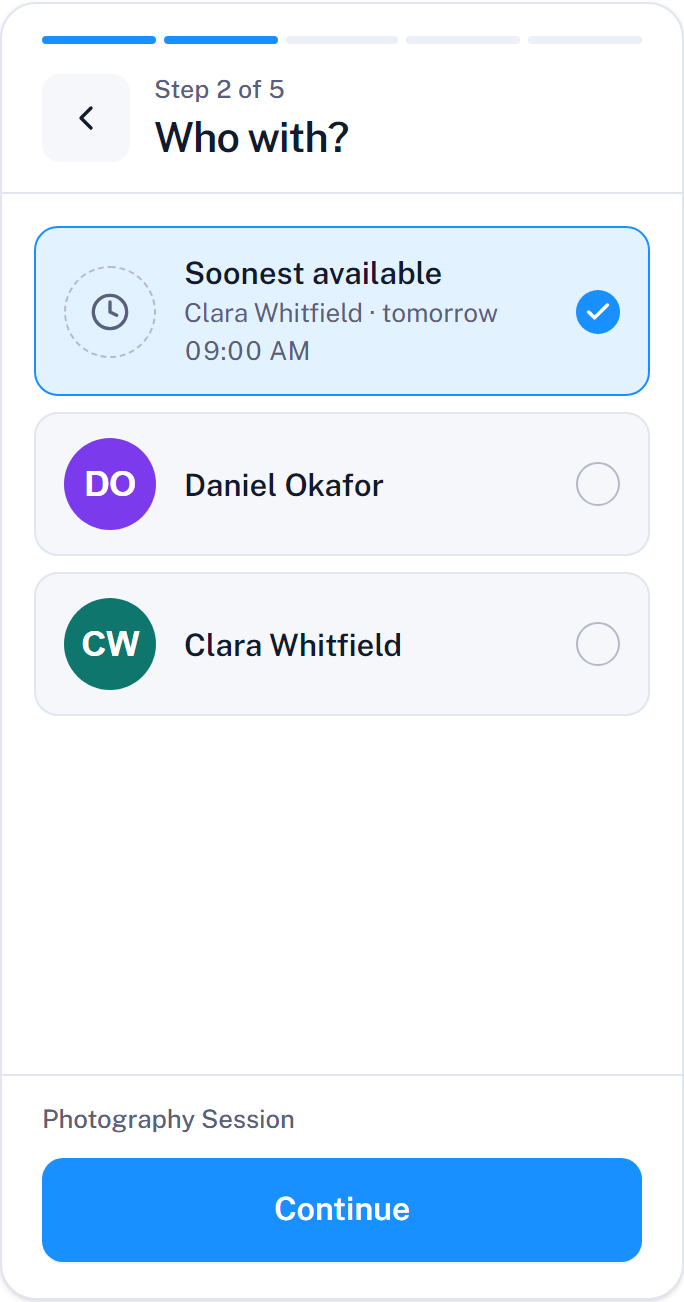
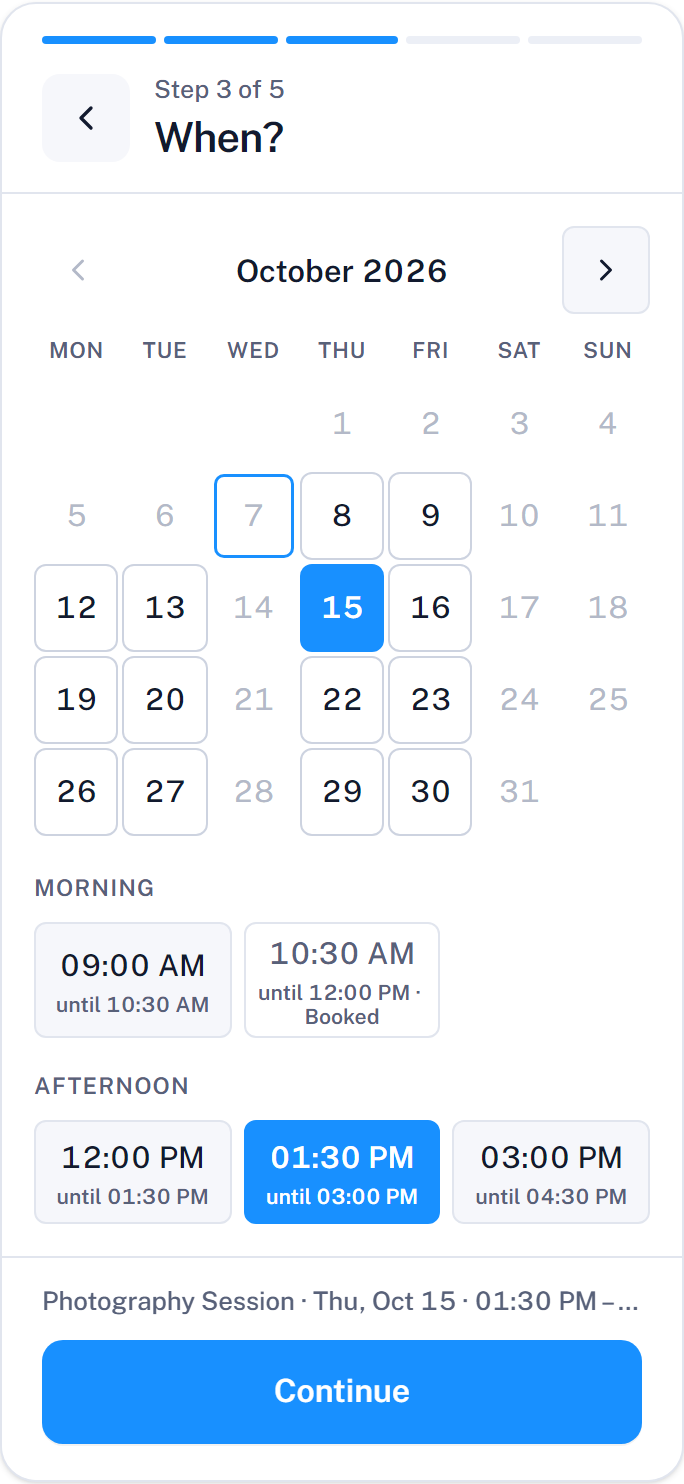
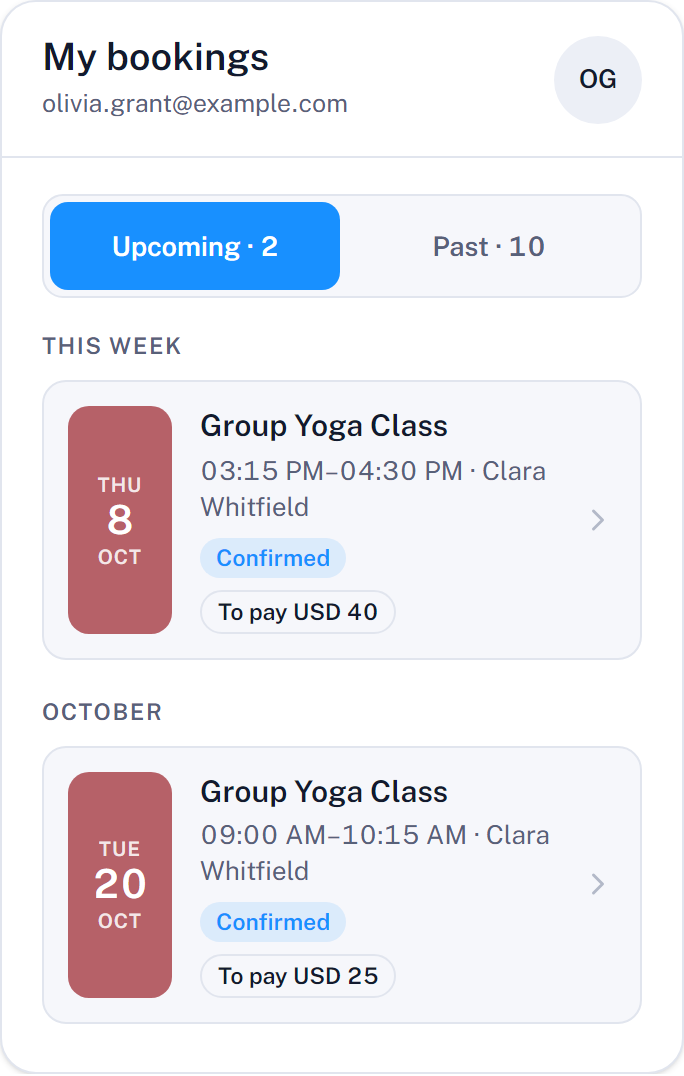
The booking widget has been rebuilt. What it does is the same; how it looks and how it is used have changed:
- Monthly calendar. Each day shows whether it is available, fully booked, or closed, and days that open later say when.
- Clearer steps. A progress bar, a booking summary always in view, and the next step opening by itself after a choice.
- Booking by the day. Services that hide their times are booked by choosing the day only.
- My bookings redesigned. Booking details, add to calendar, payment, and cancellation in one place.
- For everyone. The layout follows the space the widget has, from a phone to a wide page, and the widget works with the keyboard and with screen readers.
See Booking workflow and Customize the frontend.
New features
| Feature | What it does | Read more |
|---|---|---|
| Calendar first booking flow | Customers start from a calendar of availability across services, then choose a service open on that day. Set it for all widgets, or per widget. | Booking workflow |
| Soonest available provider | An entry in the provider list that picks the provider with the nearest free time and shows who was picked. Turned on per service. | Assigning appointments to providers |
| Past bookings | My bookings lists past bookings next to the upcoming ones. | My bookings |
| Contact details for customers | An email address, a phone number, and a short note, shown where customers need to reach you. | My bookings |
| Required cancellation reason | Besides optional or not asked, the cancellation reason can be required. | Cancellation |
| Pay later | Customers can pay an existing booking online from My bookings or from the link in their emails. | Service payment settings |
| Widget font | The font included with the widget, or the font of the theme. | Customize the frontend |
| Timezone note | A short note tells visitors when the widget shows times in a timezone different from theirs. | Timezones |
Other improvements
- After an online payment, customers return to the page where they started the booking, unless the service redirects elsewhere.
- The Directions link to the booking location is also on the confirmation screen and in the booking details.
- Address autocomplete uses Google Places API (New), suggests addresses only, and its suggestions can be chosen with the keyboard.
- The Google Maps API key is added to the page only when address autocomplete is enabled.
- For privacy, the map of the location loads from Google Maps only after the customer presses Show map.
- On multilingual sites, dates and numbers in the widget follow the language of the page.
- Booking and payment requests now check reservation access and permissions more strictly, and the reservation total includes paid form options and coupons.
After the update
Check these points after updating to 4.1:
- Google Maps address autocomplete. If you use it with a recently created API key, enable Places API (New) for that key in Google Cloud. Keys that enable only the legacy Places API keep working. See Google Maps.
- Opening lead time names. The calendar-day options are now named after the period they open, such as Same day only (from midnight) or 7 calendar days, today included. Your settings work as before. See Time slots.
- Contact details and cancellation reason. If customers manage their bookings online, add your contact details under Settings > Core > General and choose whether a cancellation reason is required.
- Booking flow. Choose Service first or Calendar first under Settings > Core > Frontend, and override it on pages that need the other flow.
- My bookings page. If you do not have one yet, create it and add the Manage or cancel reservation link to the customer emails. See My bookings.
- Widget width. The widget can now be up to 800 px wide. If it looks too wide or too narrow in your theme, see Widget width and layout.
- Test booking. Make a test booking on a phone and on a computer, as described in Update TheBooking.