Customers and Privacy & GDPR
The Customers area stores the people who booked through TheBooking, including guests and customers linked to WordPress users.
Open Customers and select a customer to review their contact details, language, timezone, WordPress user, and privacy tools. View reservations opens the reservations of that customer. Search the list by name, email, or phone, and filter it with All, WordPress users, or Guests. New customer adds a customer by hand.
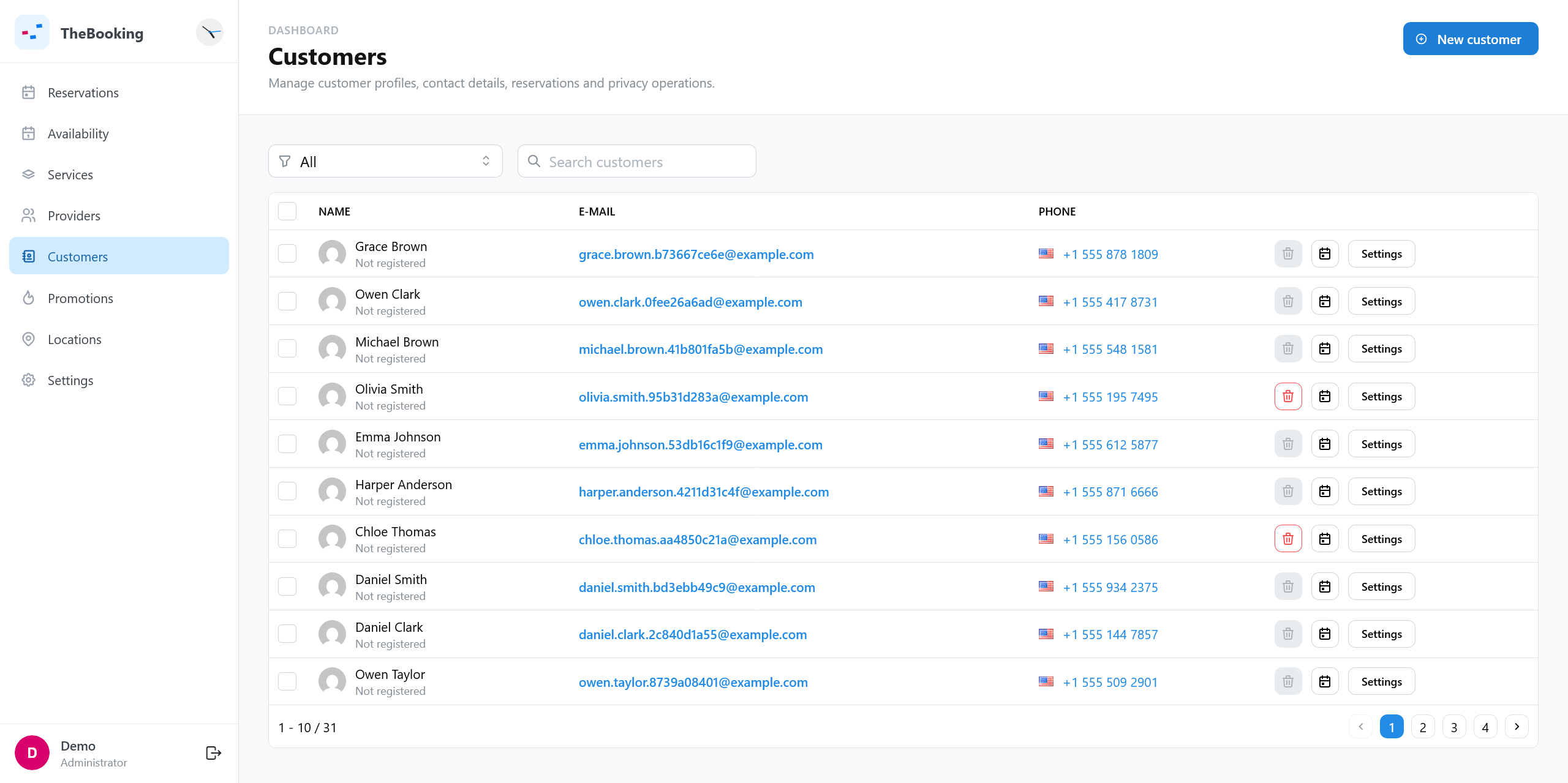
Common customer tasks
- Correct a name, email, phone number, or timezone.
- Check past and upcoming reservations.
- Review the language stored for customer-facing messages.
- Link or unlink a WordPress user.
- Respond to a privacy export or deletion request.
Customer settings
Open a customer to change their settings.
| Section | Setting | What it does | Default |
|---|---|---|---|
| General | WordPress user | The WordPress account of the customer, or None (guest). With an account, the name and email are taken from it. | The account the customer was logged in with at the first booking |
| General | Name, Email, Phone | The contact details of the customer. | From the first booking |
| General | Language | The language of the emails to the customer. System language uses the language of the site, under Settings > General in WordPress. | The language of the first booking |
| General | Timezone | The timezone of the times in the customer's notifications. System timezone uses the timezone of the site. | The timezone of the first booking |
| Advanced | Active | When off, the customer cannot make new reservations: the booking is refused when they confirm it. Existing reservations do not change. | On |
| Advanced | Message to return when restricted | The message the customer sees when a booking is refused. It appears when Active is off. | A standard message that asks the customer to contact support |
TheBooking recognizes the customer by email address, or by WordPress user when they are logged in. The restriction also applies to the reservations you create for them from the WordPress admin.
Changes are saved with Save in the Unsaved changes bar.
Check the links to staff accounts
Before version 4.2, a new customer booked from the WordPress admin could be linked to the account of the staff member who booked, instead of being a guest. TheBooking marks these customers so that you can check them: the customer is linked to the account of an administrator or a provider, and the customer's email differs from the account's.
A message above the list counts them, with a Review link. The list shows them with Check link, and the To review filter shows only them. In the customer's General section, a message names the account. Then:
- if the account is not the customer's, choose None (guest) under WordPress user and save;
- if the link is right, for example a staff member who books for themselves with another email, select Keep this link. The customer is not marked again while it stays linked to that account.
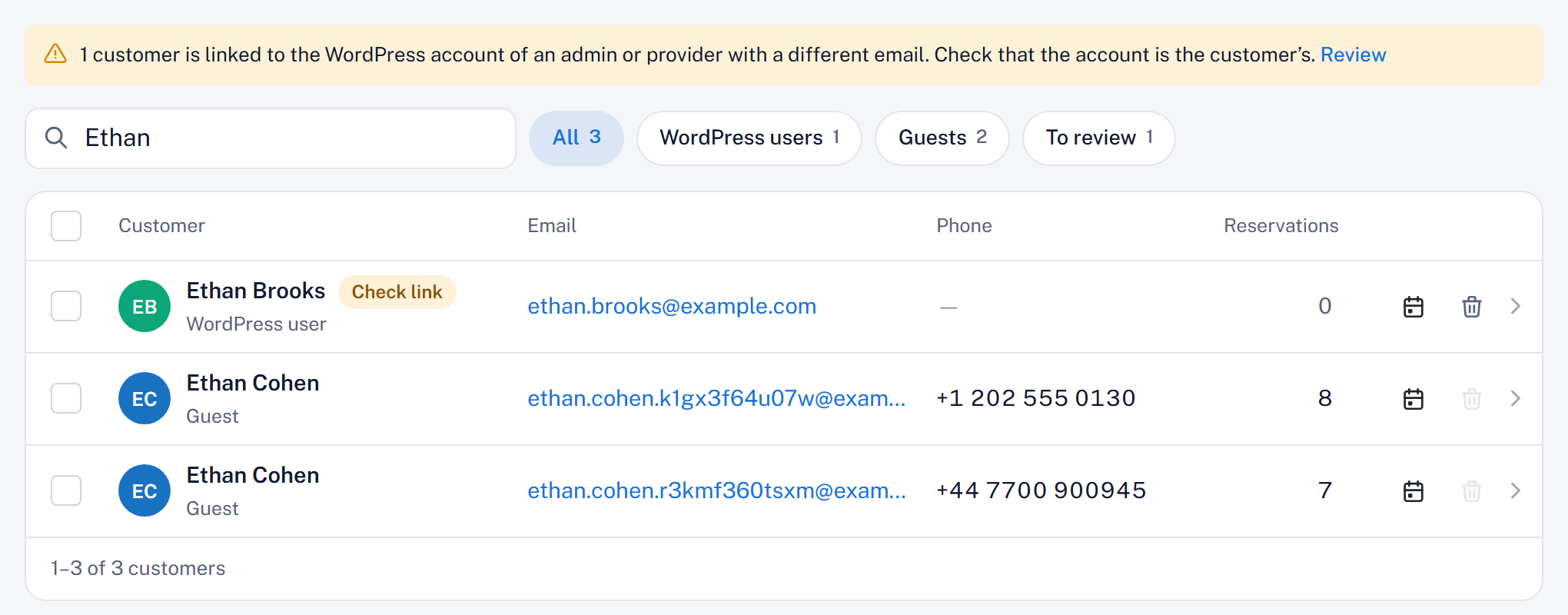
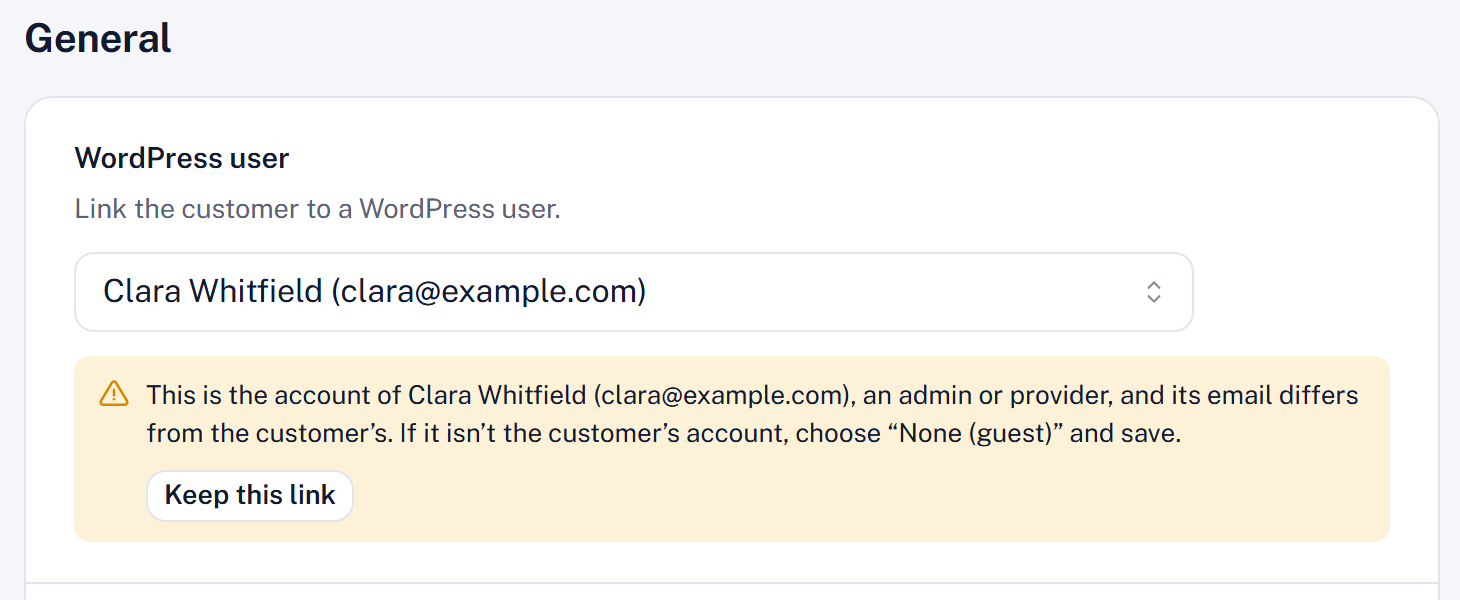
Only administrators see and solve these links.
Privacy actions
The Privacy & GDPR section supports both WordPress-linked customers and guests.
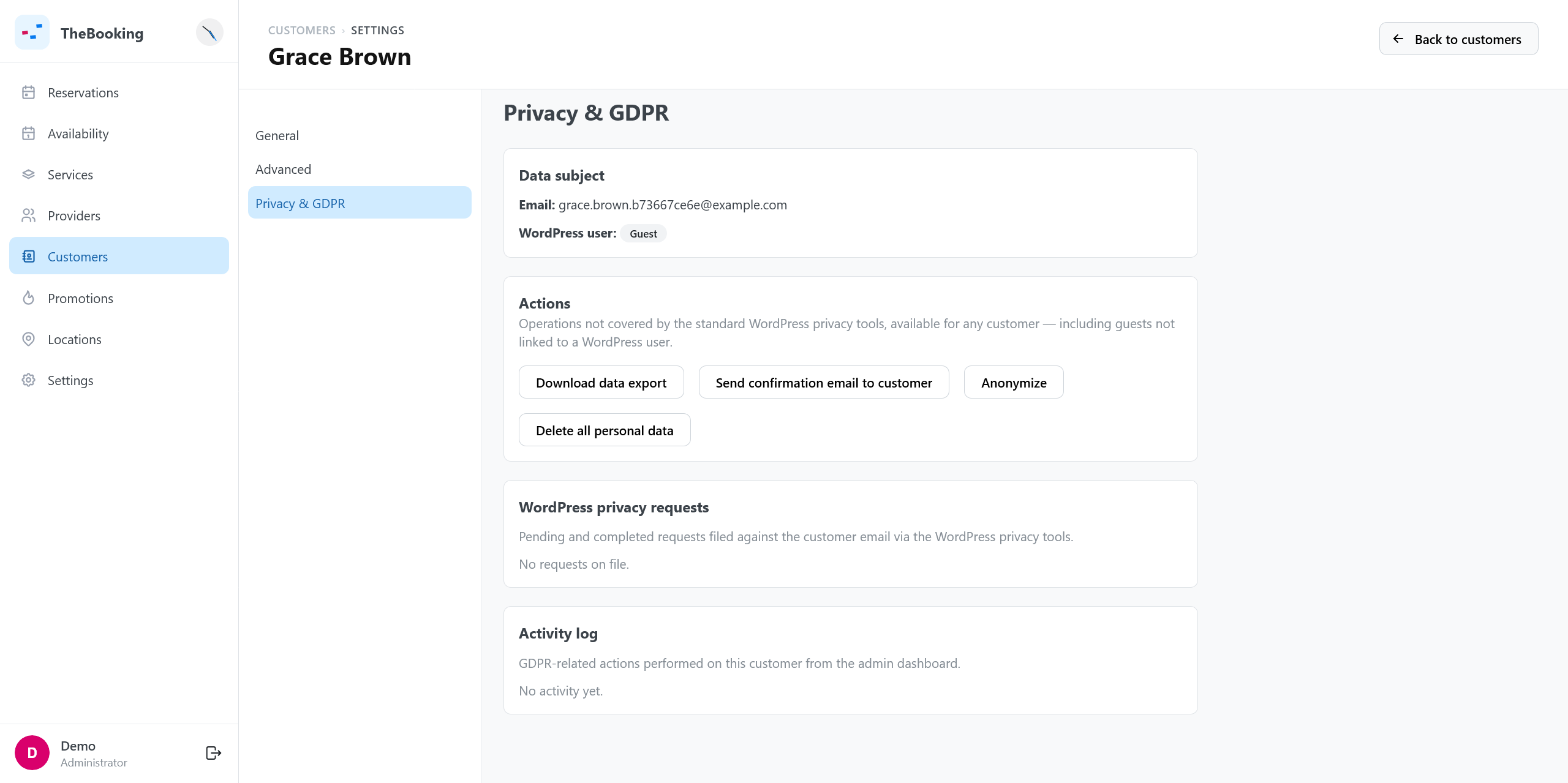
Download data export
Downloads a JSON export with customer profile data, reservations, and booking-form answers.
Send confirmation email to customer
Creates a standard WordPress privacy request and sends the customer a confirmation link for export or removal.
Anonymize
Removes personally identifiable information while keeping reservation records for accounting, reporting, or operational history.
Use anonymization when the booking record must remain but customer identity should be removed.
Delete all personal data
Deletes the customer's reservations and then the customer record. Use this only when the booking records should also be erased.
Anonymization and deletion are irreversible. Confirm legal, accounting, and retention requirements before running either action.