Promotions
Promotions lower the price of a booking before the customer pays. There are two types:
- A campaign applies by itself to the eligible bookings, for example "10% off all massages in November".
- A coupon applies only when the customer enters its code, for example a code you send to newsletter subscribers.
Each promotion has a percentage or fixed discount, a validity period, optional conditions on the appointment dates, and an explicit list of target services. The promotion applied is stored with the reservation.
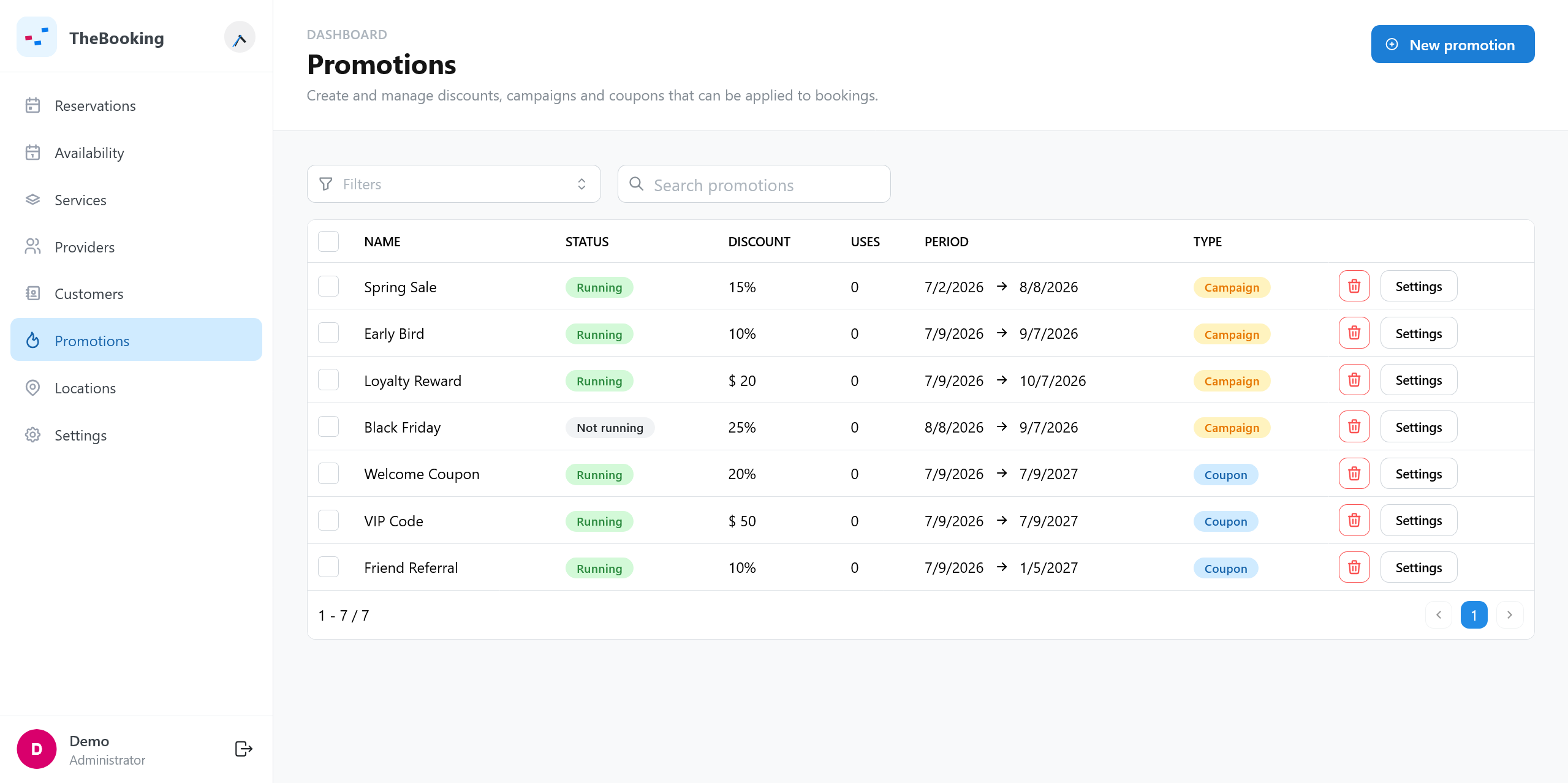
Create a promotion
- Open Promotions and select New promotion.
- Enter the name, choose Campaign or Coupon, set the discount, and select Add promotion. The promotion opens on its General section.
- Set the Valid dates.
- For a coupon, set its codes under Coupon codes.
- Under Advanced, set the conditions on the appointment dates, if needed.
- Under Target services, select every service the promotion applies to: a promotion without services applies to no booking.
- Make a test booking of a target service and check the price on the review step and at the payment gateway.
Save your changes with Save in the Unsaved changes bar.
General settings
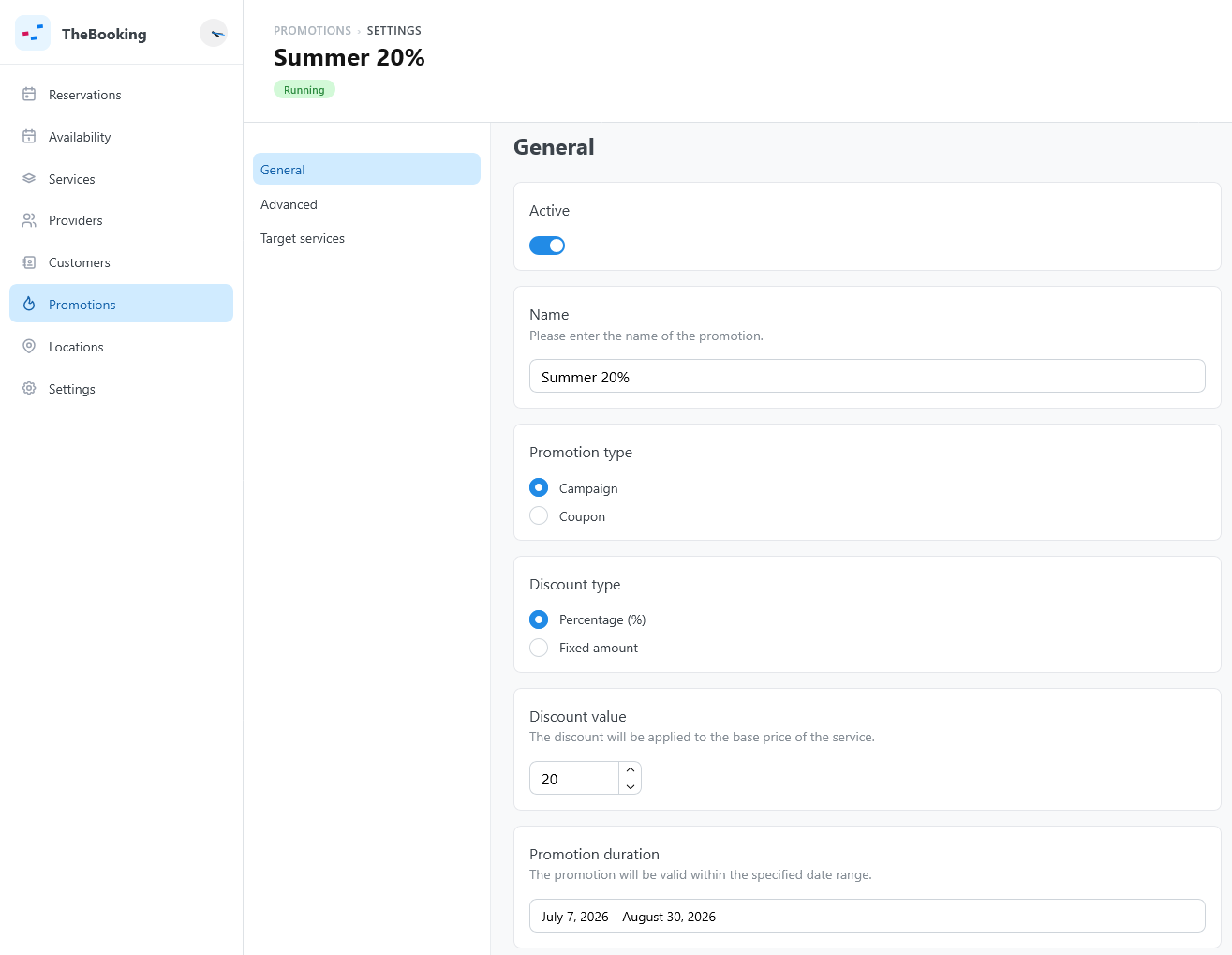
| Setting | What it does | Default |
|---|---|---|
| Active | Turns the promotion on or off without deleting it. An inactive promotion is never applied, even within its dates. | On |
| Name | The name in the admin. For a coupon with a Shared code, it is also the code customers enter. | Empty |
| Promotion type | Campaign: applied automatically to every eligible booking in its dates. Coupon: applied only when the customer enters a valid code. | Campaign |
| Discount | Percentage (%) of the price, at most 100, or Fixed amount, and the value. | Percentage (%) |
| Valid dates | Starts and Ends: the promotion applies to bookings made between these days, in the site timezone. | Empty |
A campaign applies to every ticket of the booking: with two tickets, a fixed discount is taken off twice.
The list of promotions shows the status of each one: Scheduled before its dates, Running during them, Ended after them, and Paused when it is not active.
Coupon codes
For a coupon, Code type decides how customers get a code:
| Code type | How it works |
|---|---|
| Shared code | All customers enter the same code: the promotion name. To change it, rename the promotion in General. Turn on Limit total uses to set how many bookings can use the code; 0 means no limit. |
| Single-use codes | Each code from your list works for one reservation only. Paste or type the codes, separated by commas, spaces, or new lines, and select Add code. The list shows which codes are Available and which are Used, and by which reservation. |
Codes do not distinguish upper and lower case. A coupon with single-use codes and no code left can't be used: when all codes are used, add new ones.
A booking counts as a use while it is confirmed, or pending and not expired: a cancelled or expired booking gives its use back, and a used single-use code works again.
Advanced settings
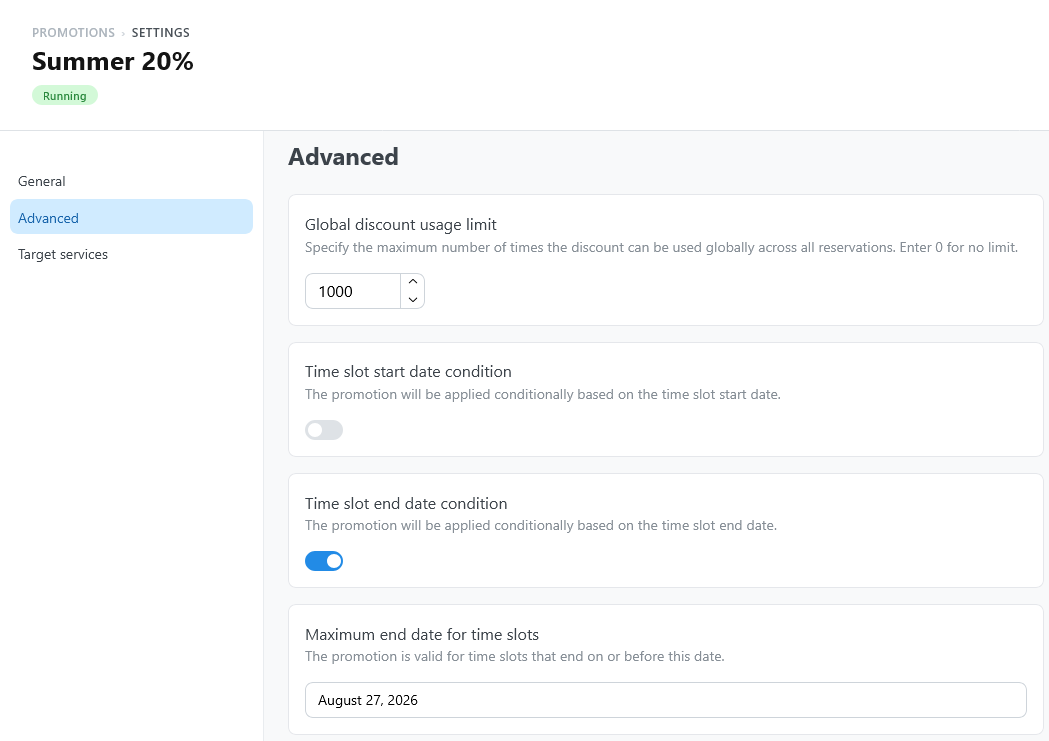
| Setting | What it does | Default |
|---|---|---|
| Condition on the slot start date | When on, the promotion applies only to appointments that start on or after the date. | Off |
| Condition on the slot end date | When on, the promotion applies only to appointments that end on or before the date. | Off |
The Valid dates and these conditions are separate checks. Example: a campaign valid from November 1 to November 15, for appointments until December 31, applies to bookings made in the first half of November for appointments up to the end of December.
Target services
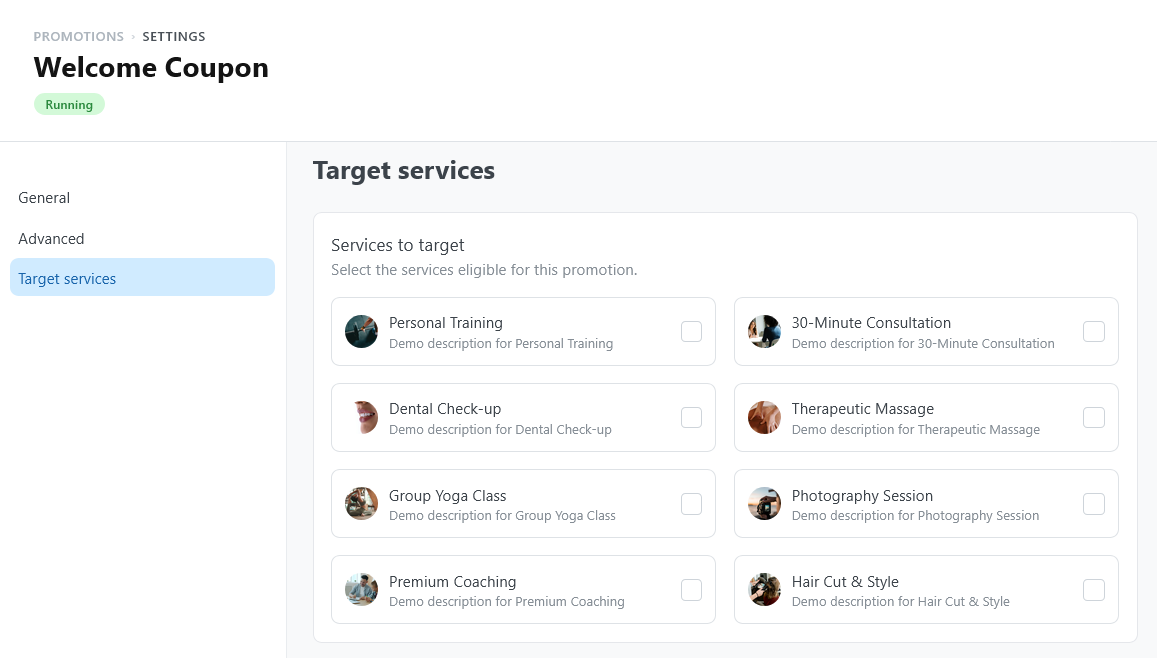
Eligible services lists the services the promotion applies to. The list is explicit: services created after the promotion, including duplicated services, are not added by themselves. Review the list whenever you add services. A promotion without services applies to no booking, and its page says so.
What customers see
- Campaign. In the booking widget, discounted times show the discount, for example −10%. In the calendar-first flow, the services of the chosen day show it too. The review step shows the full price struck through and You save with the amount.
- Coupon. On the review step, the customer selects Have a discount code?, enters the code under Discount code, and selects Apply. A wrong or used code shows Invalid coupon. The customer cannot continue until the code is applied or removed.
See Booking workflow for the whole booking path.
How discounts combine
A reservation takes one coupon at a time. Campaigns still add up: every campaign that applies to the booking lowers the price, with or without a coupon.
A code belongs to one coupon promotion at a time: two coupon promotions whose periods overlap can't accept the same code, and TheBooking refuses to save the second one. A code can come back in a later period, for example WELCOME10 every year. If two older promotions still accept the same code, the one whose period starts first applies.
To protect your codes, TheBooking counts the wrong codes that each visitor tries. After 10 different wrong codes within 10 minutes, the widget answers Too many coupon codes tried. Try again in a few minutes. until the 10 minutes are over. A real code that doesn't apply to the chosen service or time doesn't count, and administrators are never limited. Developers can change the limit and the window with the tbk_coupon_attempts_limit and tbk_coupon_attempts_window filters.
Test before going live
Test each promotion with the active payment gateway. Check the rounding of fixed and percentage discounts, and what happens when the discount brings the total to zero. See Service payment settings and Enable online payments.