Promotions
Promotions lower the price of a booking before the customer pays. There are two types:
- A campaign applies by itself to the eligible bookings, for example "10% off all massages in November".
- A coupon applies only when the customer enters its code, for example a code you send to newsletter subscribers.
Each promotion has a percentage or fixed discount, a validity period, optional conditions on the appointment dates, and an explicit list of target services. The promotion applied is stored with the reservation.
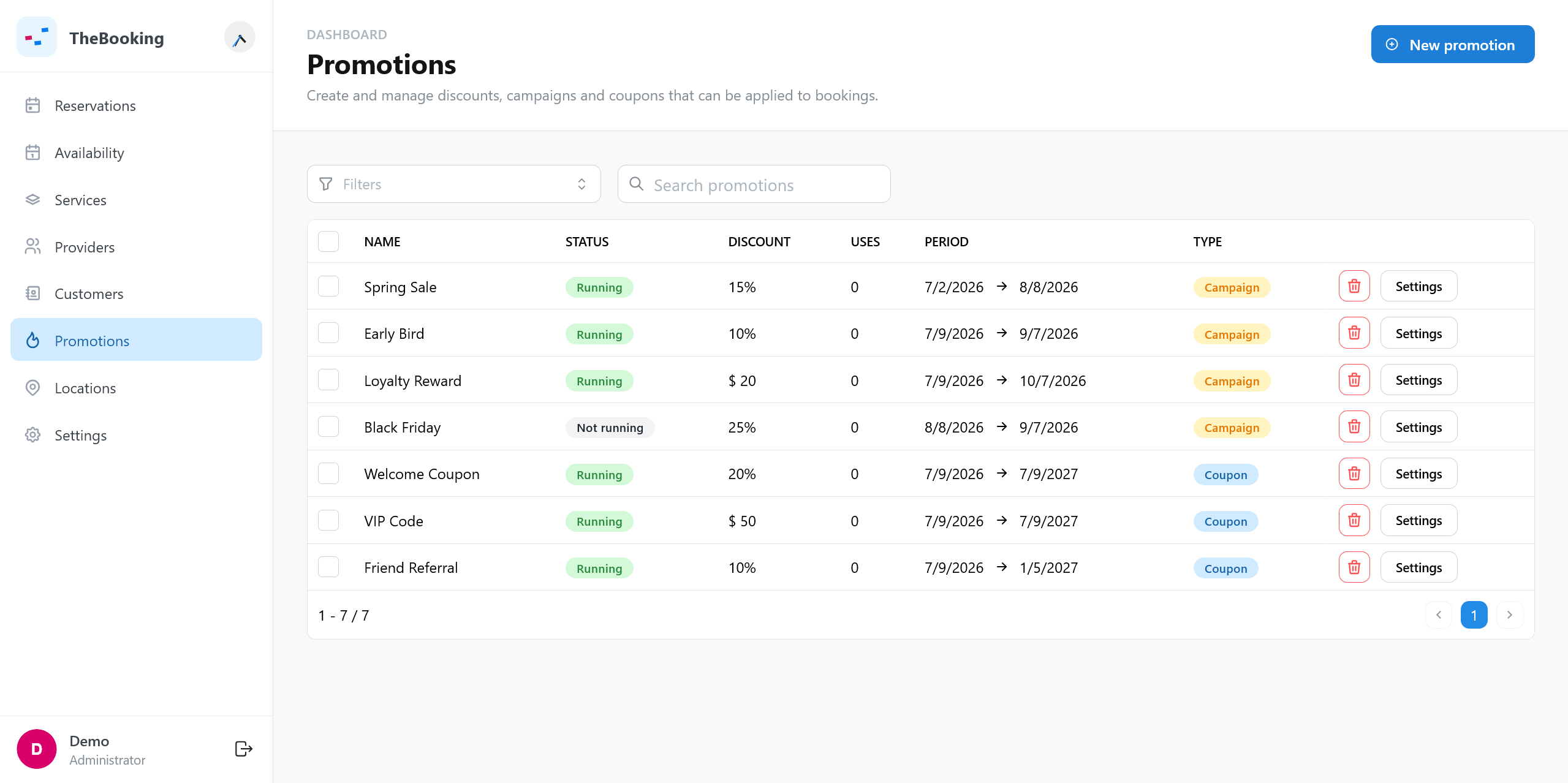
Create a promotion
- Open Promotions and select New promotion.
- In General, enter the name, choose Campaign or Coupon, and set the discount and the Promotion duration.
- In Advanced, set the coupon codes, the usage limit, and the conditions on the appointment dates, if needed.
- In Target services, select every service the promotion applies to.
- Make a test booking of a target service and check the price on the review step and at the payment gateway.
General settings
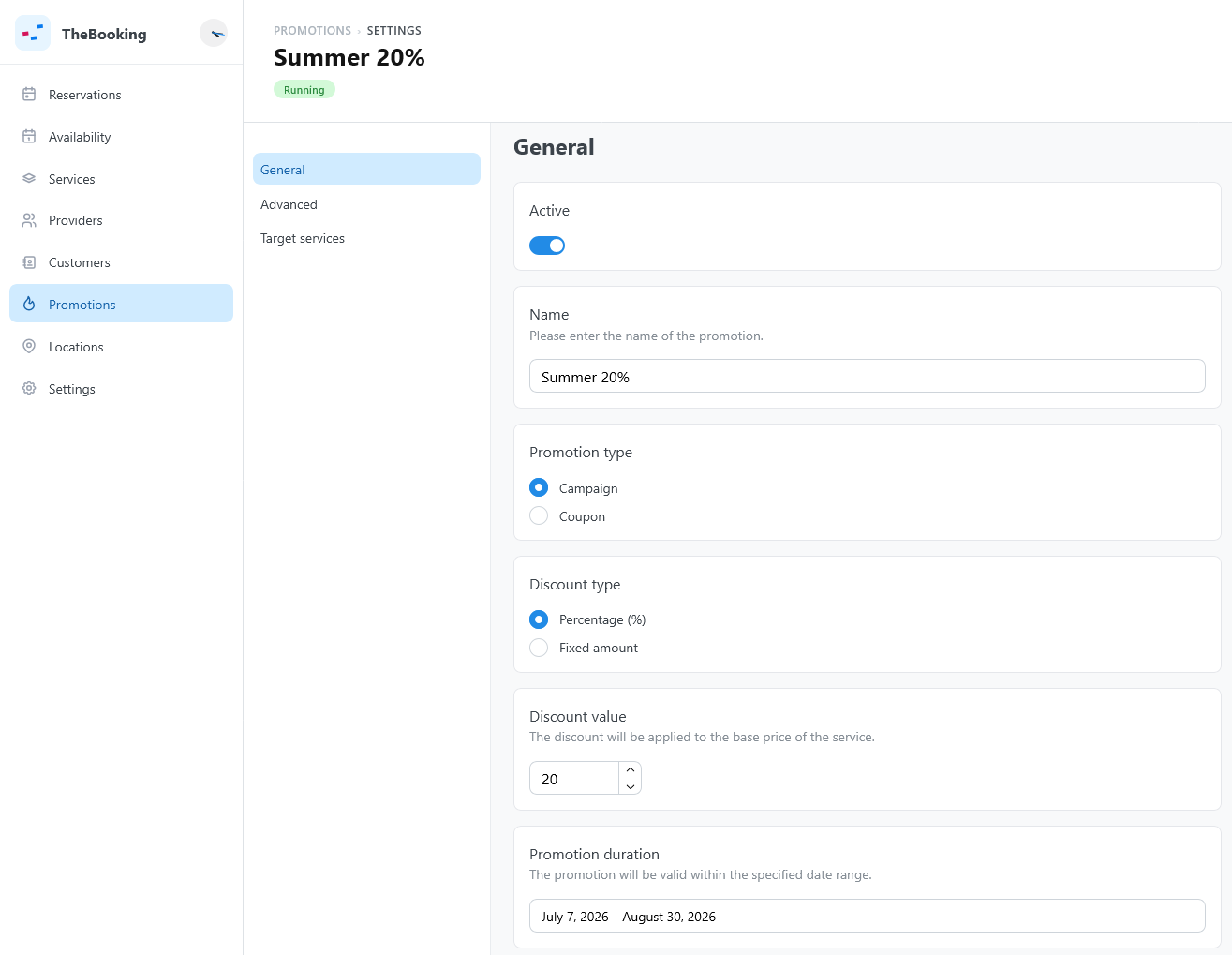
| Setting | What it does | Default |
|---|---|---|
| Active | Turns the promotion on or off without deleting it. | On |
| Name | The name in the admin. For a coupon with a Fixed code, it is also the code customers enter. | Empty |
| Promotion type | Campaign (applies by itself) or Coupon (needs a code). | Campaign |
| Discount type | Percentage (%) of the price, or Fixed amount. | Percentage (%) |
| Discount value | The percentage or the amount. A percentage above 100% counts as 100%. | 10 |
| Promotion duration | The dates during which the promotion can be applied, counted from the moment of the booking. | Empty |
A campaign applies to every ticket of the booking: with two tickets, a fixed discount is taken off twice.
Advanced settings
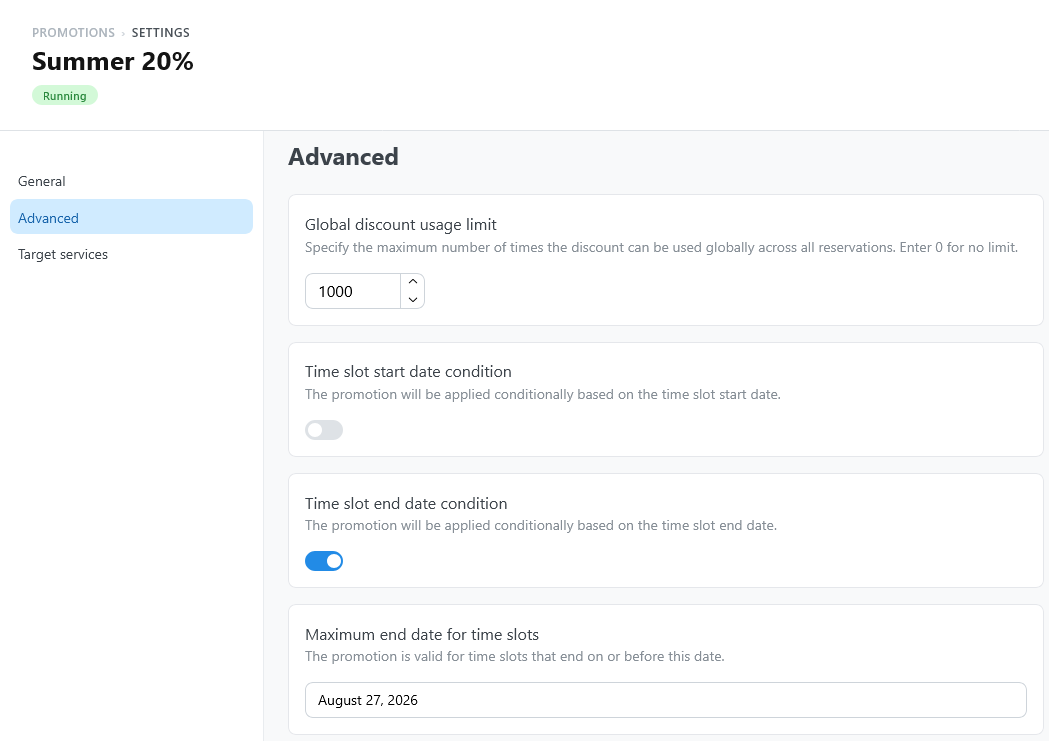
| Setting | What it does | Default |
|---|---|---|
| Coupon configuration | For coupons. Fixed: the code is the promotion name, and many customers can use it. List: a comma-separated list of codes; each code works once. Codes do not distinguish upper and lower case. | Fixed |
| Global discount usage limit | Only for coupons with a Fixed code: how many bookings can use the code in total. 0 means no limit. Campaigns and List codes ignore it. | 0 |
| Time slot start date condition, Minimum start date for time slots | When on, the promotion applies only to appointments that start on or after the date. | Off |
| Time slot end date condition, Maximum end date for time slots | When on, the promotion applies only to appointments that end on or before the date. | Off |
A booking counts as a use while it is confirmed, or pending and not expired: a cancelled or expired booking gives its use back, and a used List code works again.
The Promotion duration and the time slot conditions are separate checks. Example: a campaign valid from November 1 to November 15, for appointments until December 31, applies to bookings made in the first half of November for appointments up to the end of December.
Target services
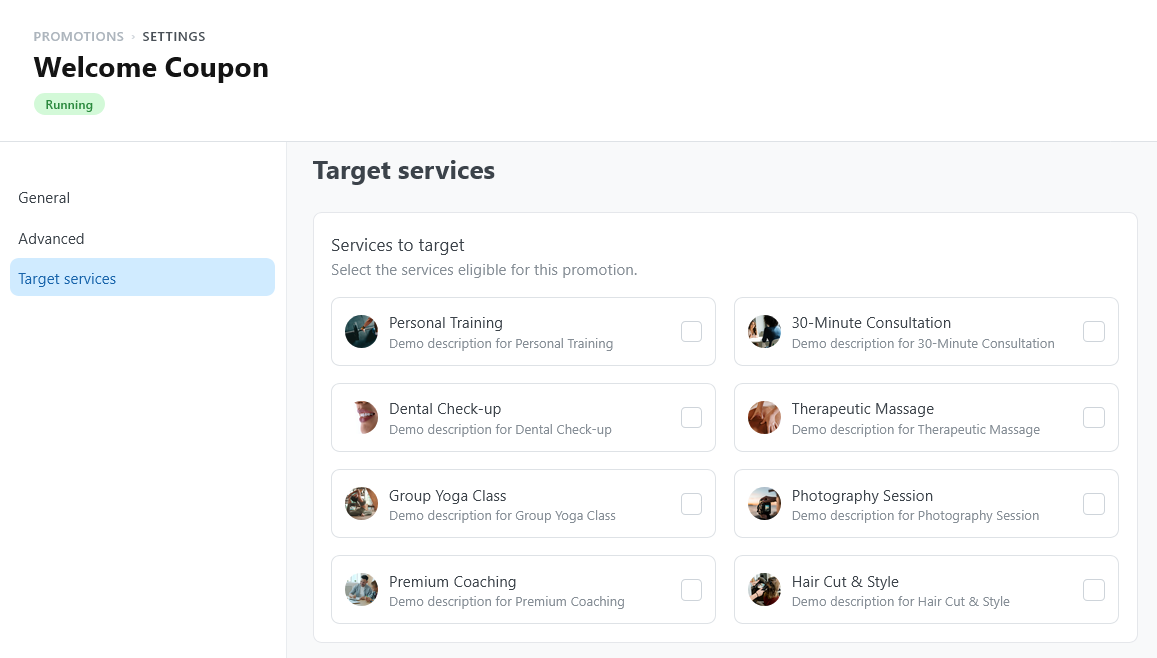
Services to target lists the services the promotion applies to. The list is explicit: services created after the promotion, including duplicated services, are not added by themselves. Review the list whenever you add services.
What customers see
- Campaign. In the booking widget, discounted times show the discount, for example −10%. In the calendar-first flow, the services of the chosen day show it too. The review step shows the full price struck through and You save with the amount.
- Coupon. On the review step, the customer selects Have a discount code?, enters the code under Discount code, and selects Apply. A wrong or used code shows Invalid coupon. The customer cannot continue until the code is applied or removed.
See Booking workflow for the whole booking path.
Test before going live
Test each promotion with the active payment gateway. Check the rounding of fixed and percentage discounts, and what happens when the discount brings the total to zero. See Service payment settings and Enable online payments.