Service payment settings
The service payment section appears when online payments are enabled and at least one gateway is active.
Settings
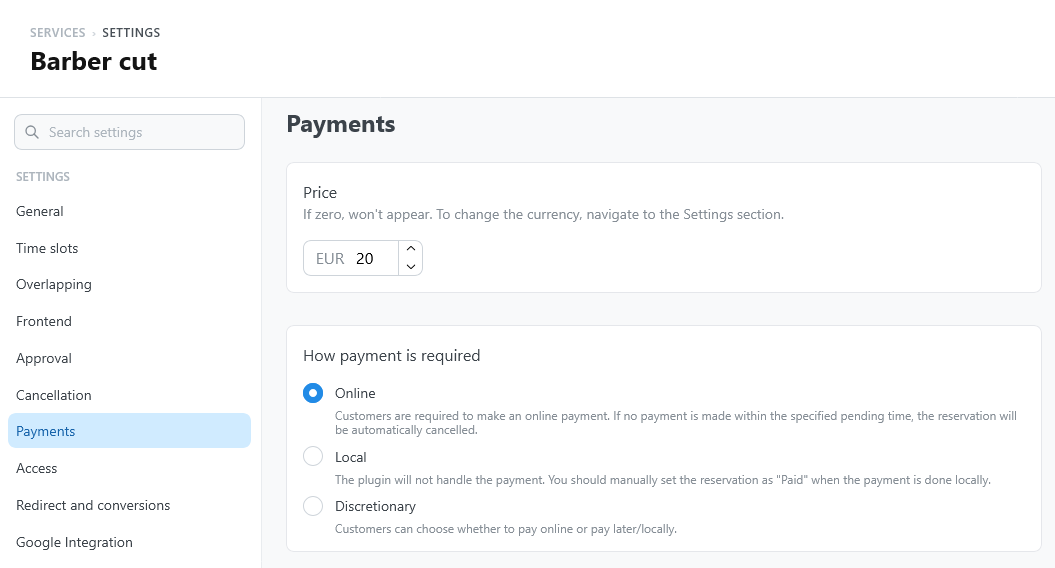
Open the service settings and select Payments.
| Setting | What it does | Default |
|---|---|---|
| Price | The base price of the service. With 0, no price appears and the service is free. Booking-form options and promotions can change the final amount. | 0 |
| How payment is required | Online, Local, or Discretionary. See Payment requirement. | Online |
The currency is set under Settings > Core > General. See General settings.
Payment requirement
How payment is required offers three options:
| Option | What happens |
|---|---|
| Online | The customer pays online right after booking. The reservation stays pending until the payment arrives, and it expires if the payment does not arrive within the Pending payment expiration time. See Which reservations expire. |
| Local | The plugin does not handle the payment: the customer pays at the appointment. Mark the reservation as paid in WordPress when the payment is made. |
| Discretionary | The customer chooses whether to pay online now, or later or at the appointment. |
Without an active gateway, no service can take an online payment. See Payments settings.
Pay later
Customers can pay a booking online after it was created, not only right after booking. The booking details in My bookings show Pay the booking when:
- the service uses Online or Discretionary payment;
- the booking is pending or confirmed, and not yet paid;
- the amount to pay is greater than zero;
- online payments are enabled and at least one gateway is active.
The customer can reach the booking by logging in, or with the personal link from a notification email. With Online, the details also say by when the customer must pay to keep the booking.
After the payment
After the hosted checkout, customers return to the page where they started: the booking page or My bookings. The widget shows whether the payment was received. If the service has a redirect, customers go to that page instead.
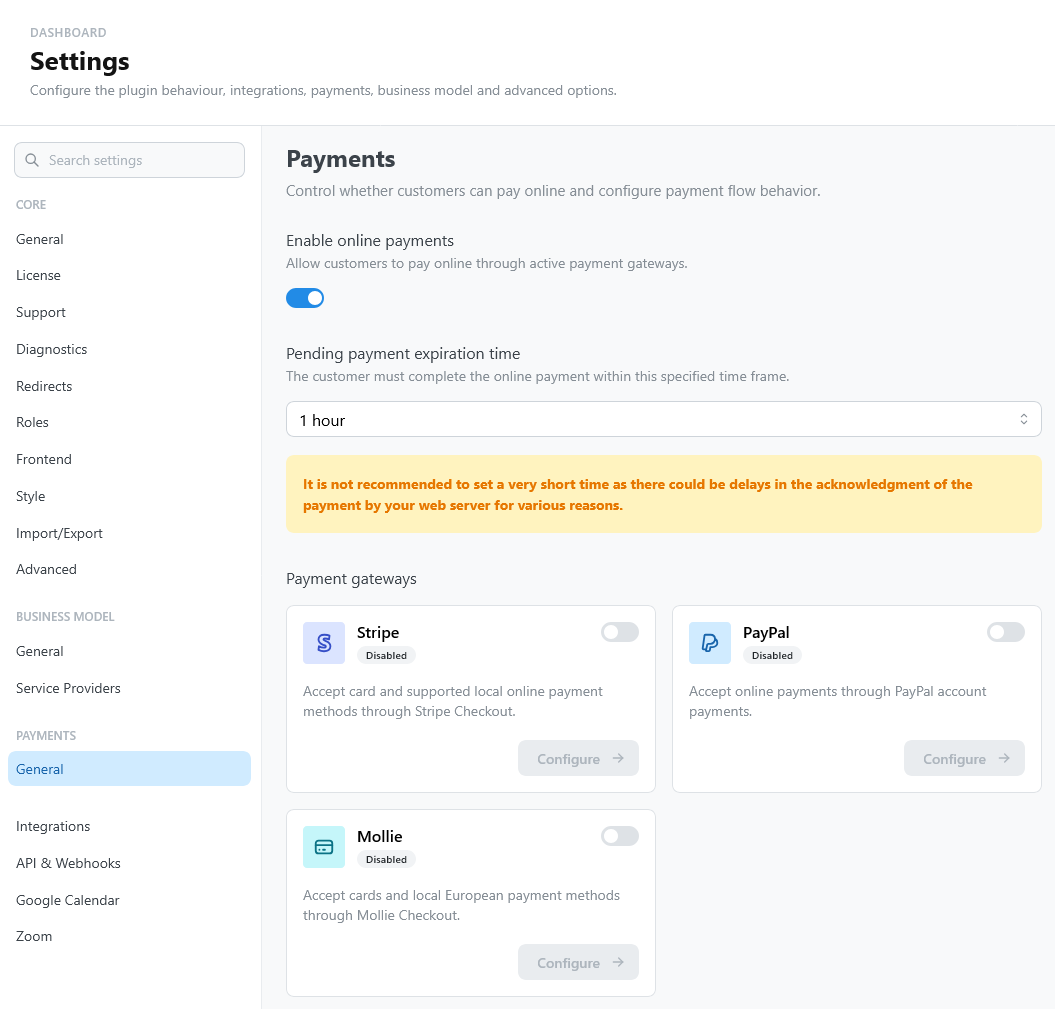
See Enable online payments for the installation-wide setup.