Booking form
Each service can have its own booking form. Use it to collect the details needed to manage that specific appointment.
For a simple service, name and email can be enough. For a more complex service, add phone number, address, notes, file uploads, or questions about the service.
Build the form
Open the service and use the form builder: add fields from the Field library, drag them to reorder, and select a field to edit its properties.
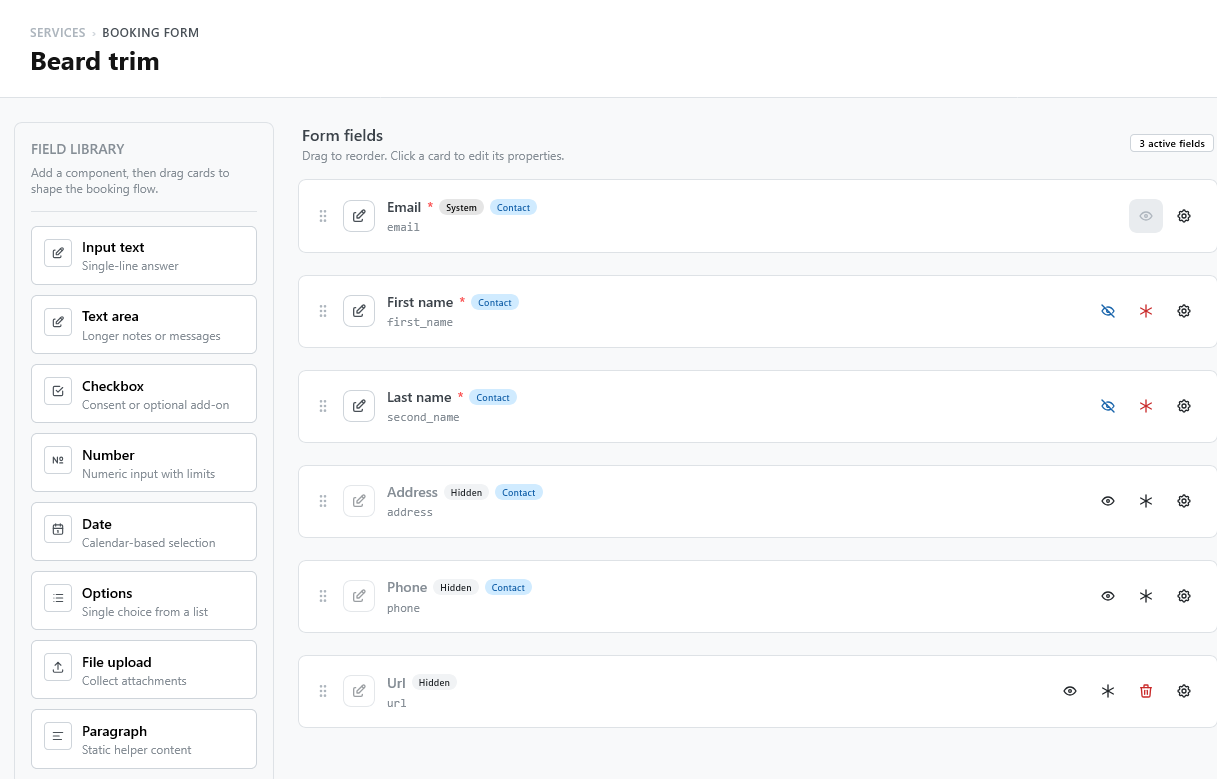
Every field can be:
- required or optional;
- hidden, to keep a field without asking it;
- conditional (see below);
- included in notification emails through its placeholder.
The Email field is part of every form: TheBooking uses it to identify the customer.
Field types
| Field | Use it for |
|---|---|
| Input text | A single-line answer, such as a name or a code. |
| Text area | Longer notes or messages. |
| Checkbox | A consent, or an optional add-on, which can have a price. |
| Number | A number, with a minimum and a maximum. |
| Date | A date chosen from a calendar. |
| Options | One choice from a list; each choice can have a price. |
| File upload | Attachments, such as a document to review before the appointment. |
| Paragraph | Text that explains something; it asks for nothing. |
Conditional fields
Under Conditional, a field changes depending on another field of the form: it can become visible, hidden, required, or not required. The condition is on:
- a Checkbox: checked or not checked;
- a Number: greater than, less than, or equal to a value;
- an Options field: equal to one of its choices.
For example, show a "Company name" field only when the customer checks "Booking for a company".
Paid options
A Checkbox and each choice of an Options field can have a Price increment: the amount is added to the price when the customer checks the box or picks the choice.
- The booking widget shows the amount next to the option, for example +USD 15, and lists it in the review step.
- The amount counts for every ticket: with two tickets, it is added twice.
- Campaign promotions discount the price of the tickets, not the paid options.
- The total that customers pay online includes the paid options. See Service payment settings.
Keep the form focused
Ask only for information you use. A shorter form is easier for customers to complete and reduces the amount of personal data stored in WordPress.
Good examples:
- phone number for last-minute contact;
- address for an on-site visit;
- notes for accessibility or preparation needs;
- file upload when the provider must review a document before the appointment.
Customer identity
Make sure the form captures the customer identity required by your workflow, especially name and email.
Phone fields follow Phone field mode under Settings > Business Model > General:
- International customers: a phone field with a country selector and international prefixes;
- Mostly local customers: a simple text field that accepts digits and prefix symbols.
The mode applies to the booking widget, the WordPress admin, and the customer list.
For logged-in customers, fields can start filled with values of their WordPress profile, such as email and name: set the Pre-fill user meta-key of each field, and turn on Pre-populate booking form. See Pre-filled fields.
Translations and notifications
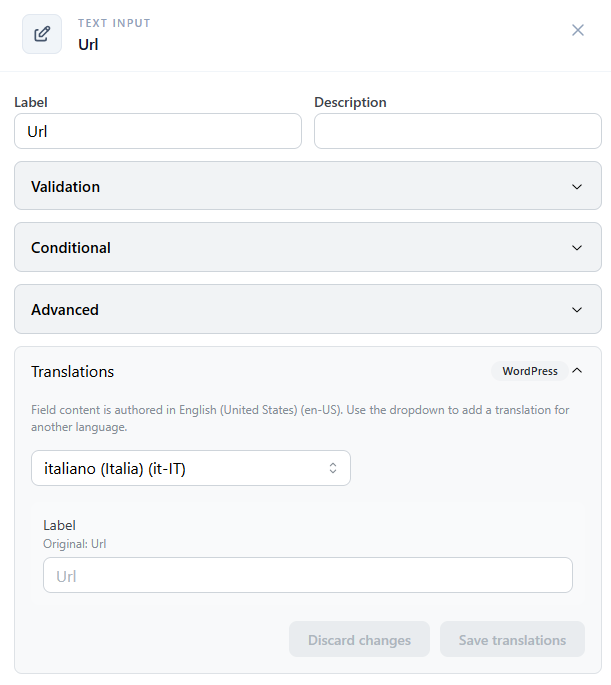
When translations are enabled, field labels and options can be translated from the internal translation panels.
If a field should appear in an email, configure its notification placeholder in the field settings and insert that placeholder in the template.
Privacy
Booking-form answers are part of customer data exports and privacy actions. Avoid collecting sensitive information unless it is necessary for the service.