Personal service settings
When providers are enabled, some settings of a service can have a different value for each provider: one provider opens bookings a week ahead, another only a day ahead.
To let providers choose, select Delegate on the setting in the service settings. The setting then has no single value for the service any more: each provider sets their own under Personal settings, in the same service. See Provider personal settings for what providers see.
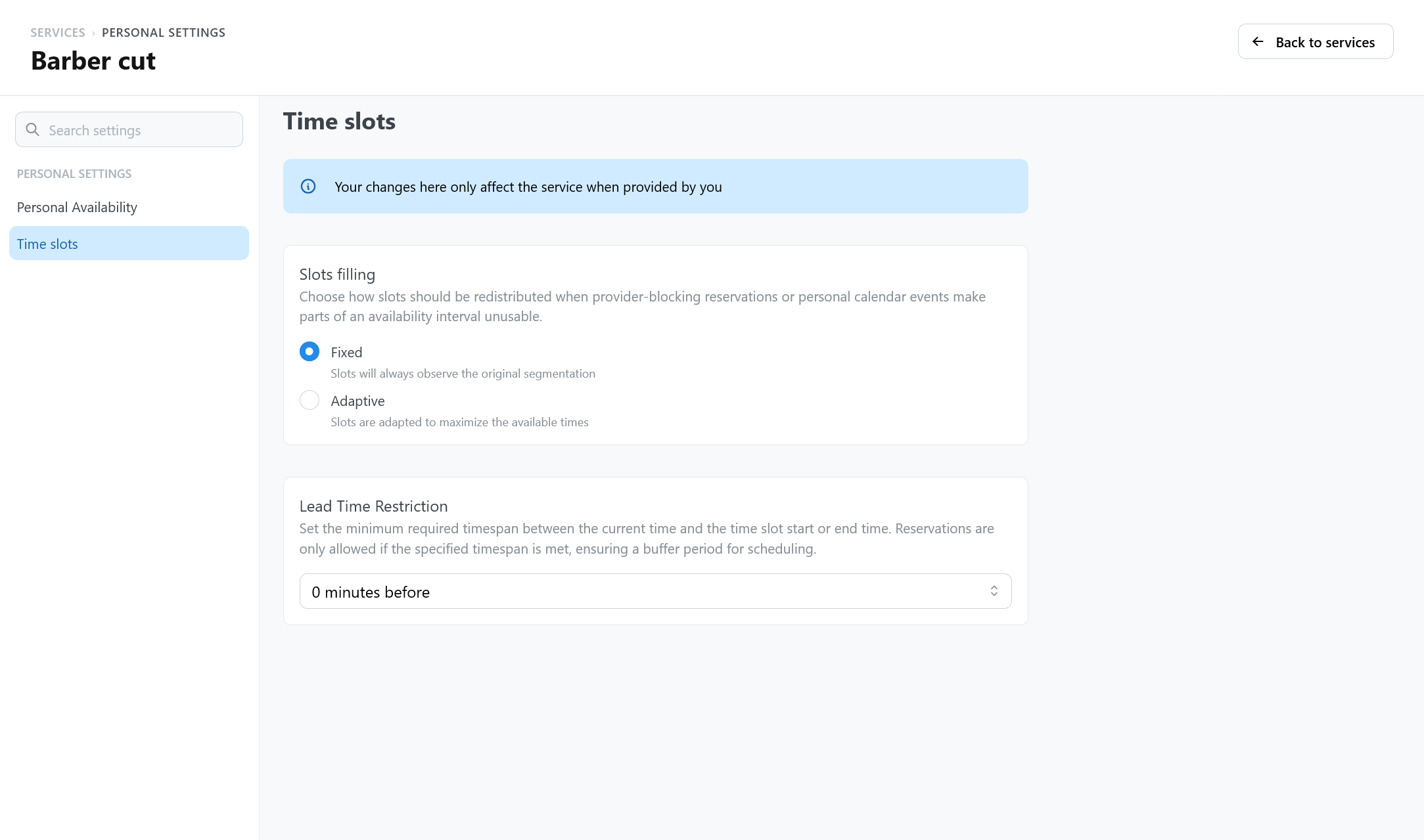
Settings you can delegate
| Service settings section | Setting |
|---|---|
| Time slots | Slots filling |
| Time slots | Lead Time Restriction |
| Time slots | Lead Time Restriction Reference |
| Time slots | Opening Lead Time |
| Overlapping | Block availability if overlaps with personal events |
| Google Integration | Add reservation on Google Calendar |
| Google Integration | Event title (booked slot) |
| Google Integration | Event color (booked slot) |
| Google Integration | Add customers as guests of the Google Calendar event |
| Google Integration | Create a Google Meet link |
| Google Integration | Google Calendar event description content |
| Google Integration | Google Calendar event description custom content |
| Google Integration | Set a Google Calendar reminder for reserved slot |
| Notifications, to the service provider | Confirmation email |
| Notifications, to the service provider | Cancellation email |
| Notifications, to the service provider | Reschedule email |
The Google Integration settings appear only when the Google Calendar integration is enabled, and a provider sees them in their personal settings only after connecting their own Google account.
Every other setting has one value for the whole service, for example slot duration, capacity, buffer, price, approval, and cancellation rules.
Recommended process
- Configure the service value of each setting first.
- Delegate only the settings that really differ between providers. A delegated setting that every provider leaves the same only adds work.
- Ask each provider to set their Personal settings in the service. Each user can change only their own personal values, administrators included.
- After changing slot filling, check the generated times with Availability > Slots. After changing lead times, check the booking widget: the preview also shows the slots that lead times close.