Approval
Turn on approval when a new reservation must wait until someone accepts it, for example when you check each request before you commit to it.
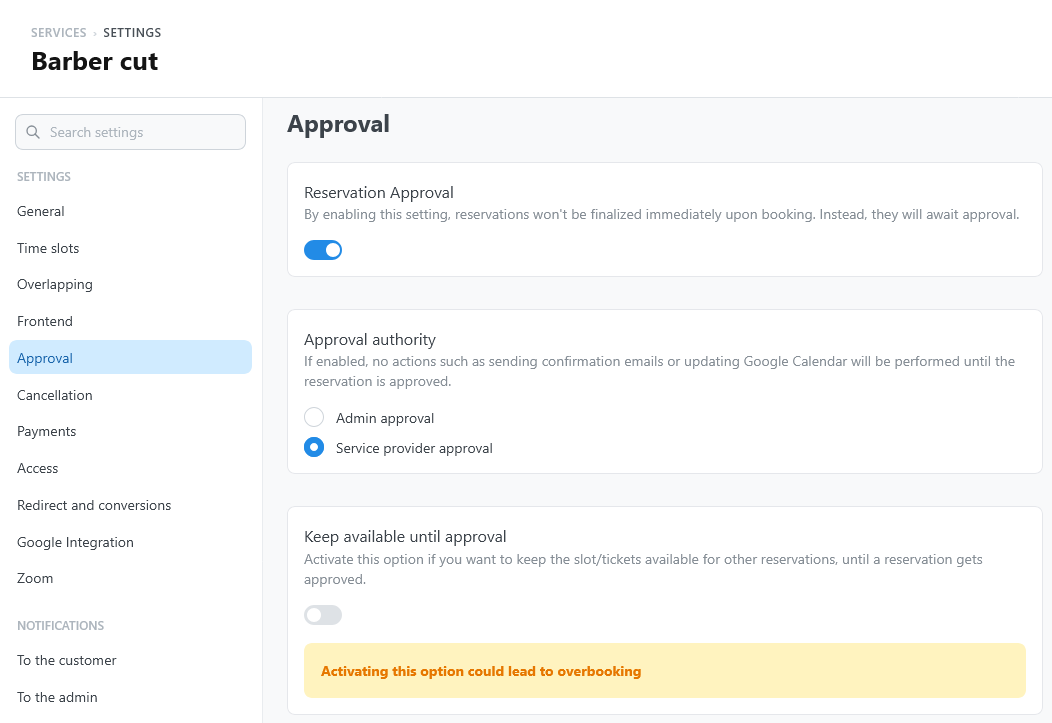
Settings
Open the service settings and select Approval.
| Setting | What it does | Default |
|---|---|---|
| Reservation Approval | New reservations of this service wait for approval instead of being confirmed. | Off |
| Approval authority | Who is asked to approve: Admin approval or Service provider approval. With provider approval, the provider of the reservation receives the request by email. | Admin approval |
| Keep available until approval | A reservation that waits for approval and is already paid does not take its time: the time stays bookable by other customers until the reservation is approved. | Off |
With Keep available until approval, more customers can request the same time than the service can take. When you approve one of them, check the others before you approve them too.
While a reservation waits
A reservation that waits for approval has the status Pending. The customer sees Booking requested in the widget, and Awaiting confirmation in My bookings.
- Availability. The reservation takes its time and tickets, like a confirmed one. With Keep available until approval, a reservation that is already paid releases them until it is approved; a reservation not paid yet, including one of a free service, still takes them.
- Google Calendar. The reservation event is created only when the reservation is confirmed.
- Emails. Each email is sent only if it is turned on in the service notifications.
| Recipient | When the reservation is created | When it is approved |
|---|---|---|
| Customer | Preliminary confirmation email: the request was received | Confirmation email |
| Administrator | Confirmation email (a booking was made) | — |
| Provider | Confirmation email, only with Service provider approval | Confirmation email |
See Notifications.
Approve or deny
Open the reservation in Reservations and select Approve or Deny. Administrators can approve or deny any reservation; a provider can do it for the reservations assigned to them.
- Approve confirms the reservation. TheBooking sends the confirmation emails and creates the Google Calendar event.
- Deny cancels the reservation and frees its time. You can add a reason, which is stored with the reservation. The customer receives the cancellation email of the service: there is no separate email for a denial, so write the cancellation email so that it also fits a denied request.
Approval and online payments
When the service also requires an online payment, the payment does not confirm the reservation: after paying, the customer still waits for approval. Without approval, a received payment confirms the reservation automatically.
Test the whole path on a staging site before you turn on both settings for a live service: book, pay, approve, and check the emails the customer receives at each step.