Frontend settings
Frontend settings change what customers see in the booking widget. They do not change the actual availability rules.
Use them to decide:
- which service details appear;
- whether customers see remaining capacity;
- whether provider names appear when customers choose a provider;
- whether times blocked by lead-time rules are hidden or shown as read-only;
- how appointment times are shown.
When automatic provider assignment is enabled, customers see one team appointment time instead of one time per provider.
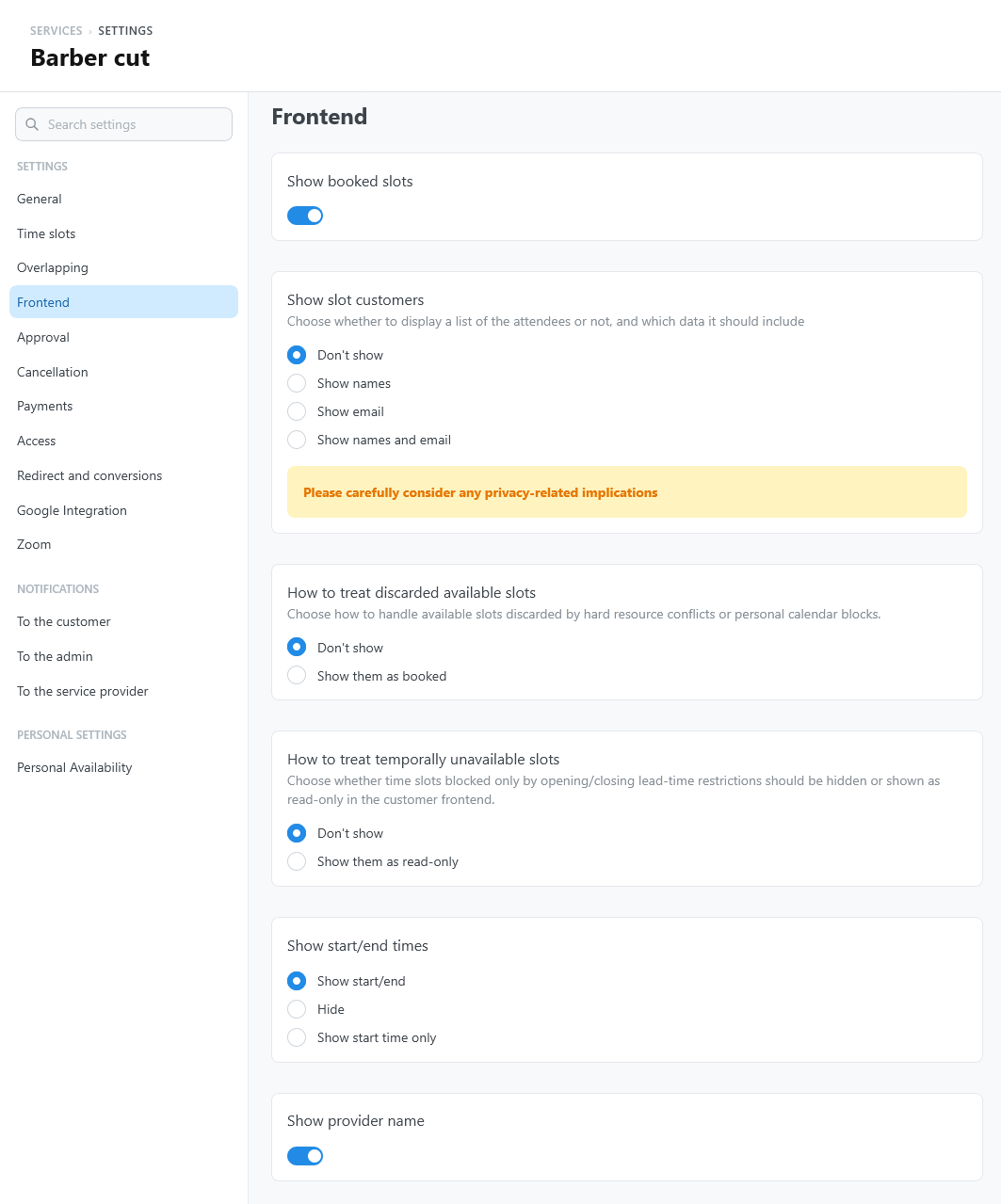
Settings
Open the service settings and select Frontend.
| Setting | What it does | Default |
|---|---|---|
| Show booked slots | Full slots stay in the list of times, marked as booked. When off, customers see only the times they can book. | On |
| Show slot customers | Under each time, lists the customers who booked it: Don't show, Show names, Show email, or Show names and email. It appears when Show booked slots is on. | Don't show |
| How to treat discarded available slots | Slots removed because the provider is busy, for example with another service or a personal calendar event: Don't show, or Show them as booked. It appears when Show booked slots is on. | Don't show |
| How to treat temporally unavailable slots | Slots not open yet, or already closed, because of the lead times: Don't show, or Show them as read-only. | Don't show |
| Show start/end times | See Show start/end times. | Show start/end |
| Show provider name | Shows the provider of each time. It appears when providers are enabled. | On |
| Show provider profile page link | Makes the provider name a link to the Website of the provider's WordPress profile, under Users. It appears when Show provider name is on. | Off |
| Capacity display | Shows how many places are left in each time. It appears when the capacity is more than 1. | On |
Show slot customers shows the names or email addresses of your customers to every visitor of the page. Use it only when your customers have agreed to it, for example in a members' area.
Show start/end times
| Option | What customers see |
|---|---|
| Show start/end | The start of each time and when it ends, for example "09:00 AM, until 10:30 AM". |
| Show start time only | Only the start of each time. |
| Hide | No times: customers book a day. |
With Hide, the service is booked by the day. The customer chooses a day in the calendar, and the booking takes the first free slot of that day. In the calendar-first flow, the time step is skipped, unless the customer has to choose the number of tickets.
Use Hide for services that have one slot a day, for example a full-day activity. If an availability plan gives the service more than one slot on some days, customers cannot choose among them and never see which time they booked: check the plan with Availability > Slots.
Widget appearance
The appearance of the whole widget (primary color, border radius, light or dark colors, and font) is set in the Customizer, not per service. See Customize the frontend.