Timezones
TheBooking stores reservation timestamps consistently and displays them in the relevant site, provider, or customer timezone.
Site timezone
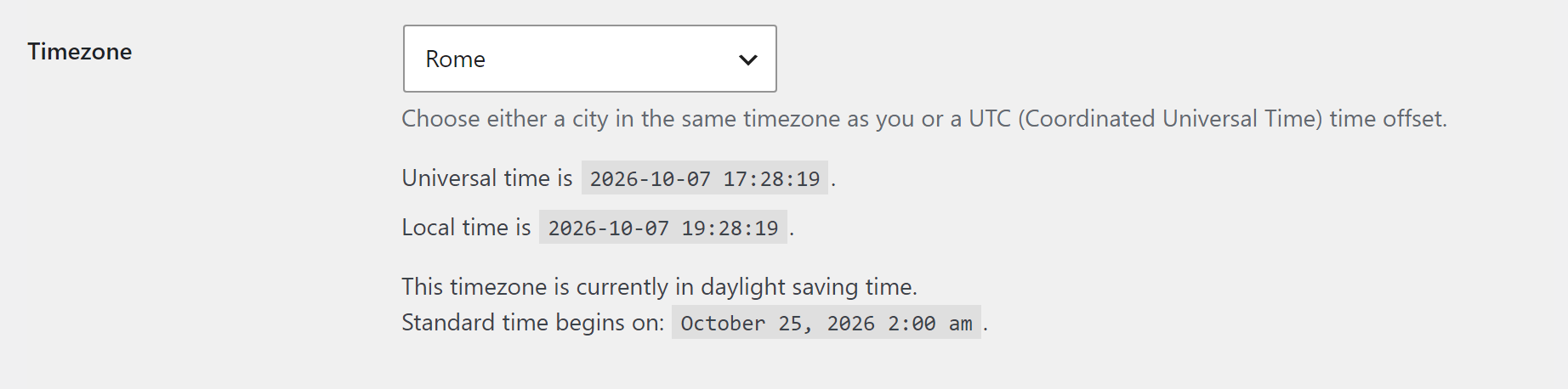
Configure the WordPress timezone under Settings > General. Prefer a named region such as Europe/Rome instead of a fixed UTC offset so daylight-saving changes are handled correctly.
Provider timezone
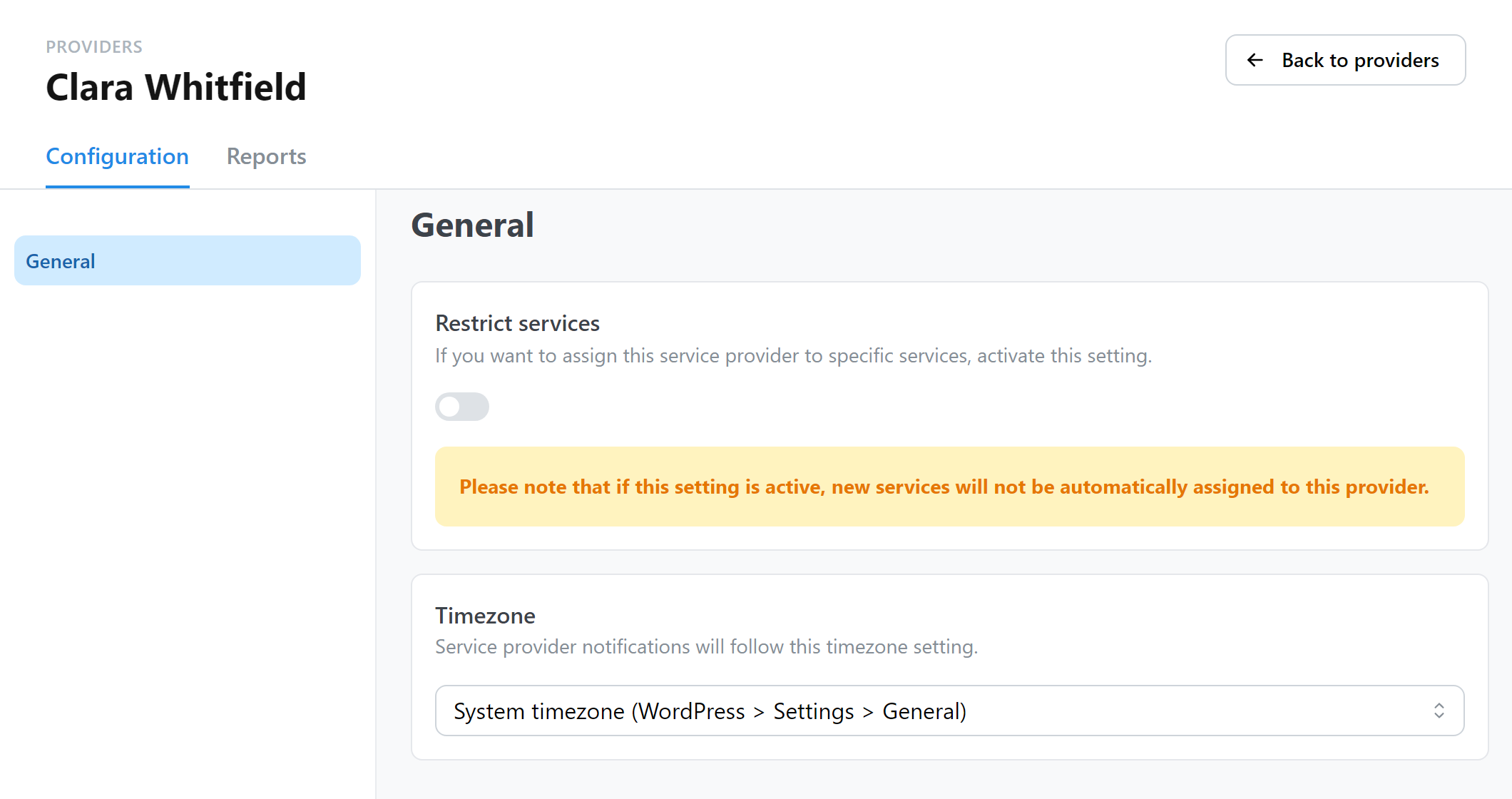
Open Providers, select a provider, and set the provider timezone. This affects provider-facing date interpretation and scheduling.
Availability plan timezone
An availability plan can use its own timezone instead of the WordPress site timezone, for example for a provider who works in another country. Daylight saving time is handled automatically. Opening lead times measured in calendar days also open at midnight in the plan's timezone.
Widget timezone
By default, the booking widget shows times in the visitor's local timezone: a visitor in New York and one in Rome see the same appointment at their own local time.
To show every visitor the same times, select a timezone in Settings > Core > Frontend > Frontend Timezone, for example the timezone of your shop. Use this when customers come to a physical place and need its local time.
When the widget shows times in a timezone different from the visitor's, a short note next to the times says which one, with the city and the offset of that day, for example "Times are in Rome time (GMT+2)." The note does not appear when the visitor's clock shows the same time.
Customer timezone
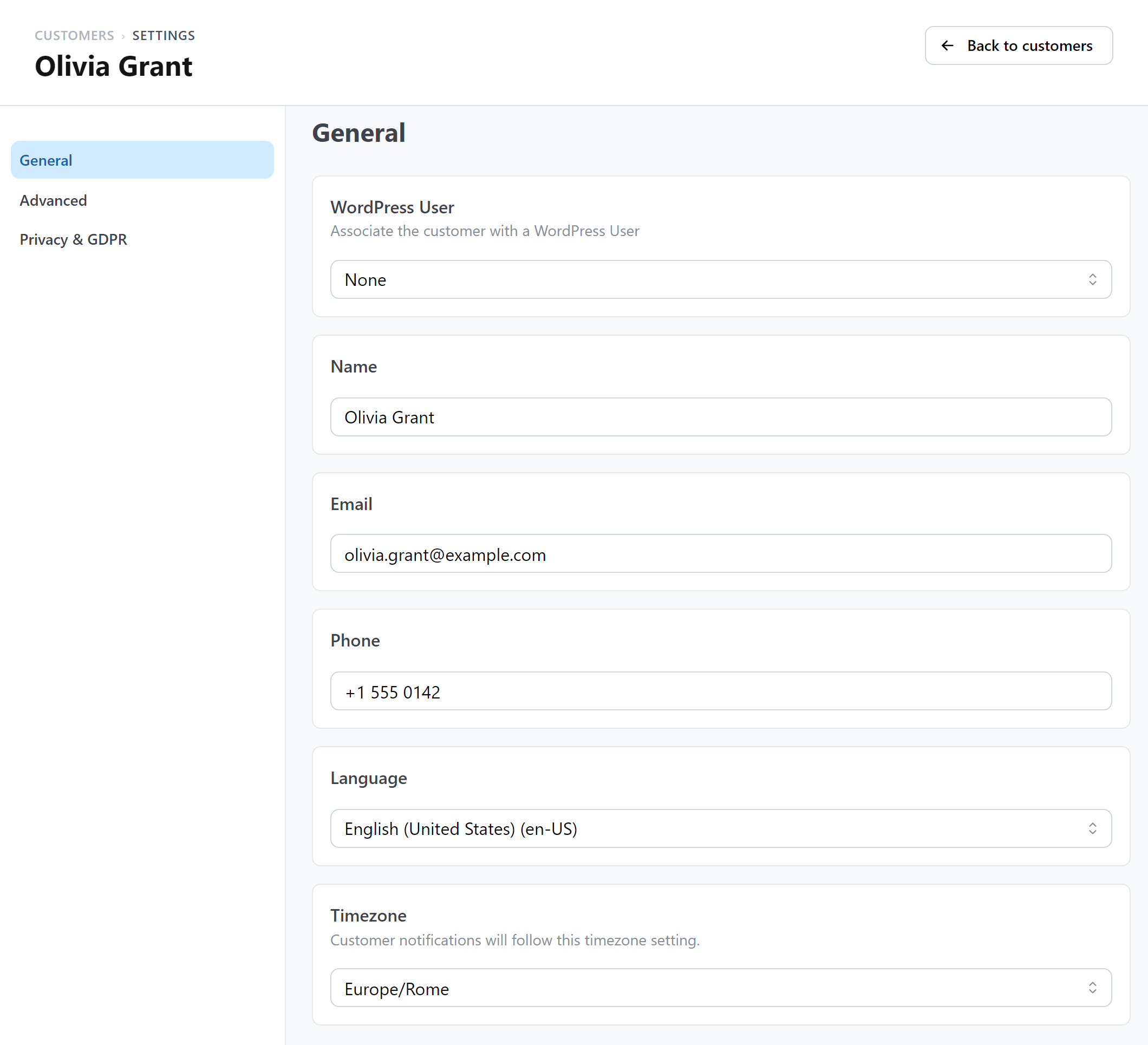
Customer records also store a timezone that administrators can review and edit.
Notifications and integrations
Customer-facing dates are rendered for the appropriate customer context. Google Calendar and Zoom receive absolute appointment times, while webhook payload timestamps use Unix time and include the site timezone as metadata.
When troubleshooting a time shift, compare the WordPress timezone, provider timezone, customer timezone, and external calendar timezone before changing reservation data.