Providing availability with Google Calendar
Google Calendar can be more than a place where reservations are written. With TheBooking, selected calendar events can also define when a service is available.
This is useful when providers already manage their schedule in Google Calendar and do not want to duplicate every working interval in WordPress.
How it works
Connect a Google Calendar as a source for an availability plan. Events in that calendar become availability windows for the services in the plan.
TheBooking then turns those windows into bookable appointment times using the service duration, buffer, capacity, provider rules, existing bookings, and any blocking calendars.
For example, a provider can create a Google Calendar event from 09:00 to 13:00. A 60-minute service can then show several bookable times inside that window.
Assign a source calendar
- Connect a Google account and, from Availability > Calendars, use Add calendar so the calendar can be used in plans.
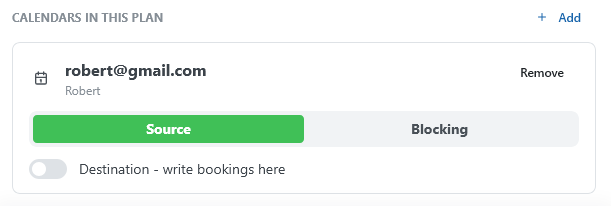
- Open the availability plan in Availability > Plans, switch to its Availability tab, and add the calendar under Calendars in this plan.
- Leave its role set to Source (the default for a newly added calendar).
- Create or edit availability events in that Google Calendar.
Source event requirements
- The event must be marked Busy, not Free. Free events are ignored by Google Calendar's availability data and produce no booking window.
- The connected Google account needs full read access to the calendar (not only "See only free/busy"). Slot commands are read from the event title, which requires more than free/busy-level sharing permissions.
- Single and recurring events both work. Recurring events are expanded into individual instances before they are matched against the plan.
- All-day events are supported and cover the whole day.
- The event title can add slot commands to override capacity, price, or location for that specific occurrence, or to restrict it to one service.
Slot commands
Source events can override some service settings for the window they cover by adding commands to the event title. This is useful for one-off exceptions — a bigger group class, a discounted slot, a different location — without touching the plan or the service settings.
Syntax
Append __ (two underscores) to the title, followed by one or more comma-separated command=value pairs:
Event title__command1=value1,command2=value2
Everything after the first __ is parsed as commands and is not treated as part of the visible title. Commands and their values are matched case-insensitively.
Available commands
| Command | Effect |
|---|---|
tickets | Overrides the capacity for slots inside this event, for example tickets=5. |
price | Overrides the price charged for slots inside this event, for example price=45.50. |
location | Sets the location recorded on the reservation, used when the booking itself doesn't already carry one. |
service | Restricts the event to a single service. The value must match that service's ID or name. Useful when several services share the same source calendar. |
Examples
Consulting__tickets=3— this occurrence accepts 3 concurrent bookings instead of the service's usual capacity.Group class__tickets=10,price=15— a discounted class with room for 10.Massage__service=deep tissue— only the "Deep tissue" service produces slots from this event; other services sharing the plan ignore it.
Allow providers to use commands
Administrators can always use slot commands. To let service providers use them too, turn on Allow service providers to use override commands. in Settings > Google Calendar. This also requires:
- Use Service Providers
- Enable Service Providers to manage their own availability
- Allow service providers to connect their own Google Account
Notes
- Commands must be in the event title. Text placed only in the description or location field is not parsed.
- Command values are lowercased, so
location=Studio Bis stored asstudio b. - The event that carries the commands still needs to satisfy the source event requirements above — without an overlapping busy source window, there is no slot for the commands to override.
When to use separate calendars
Use separate source calendars or availability plans when:
- different services need different schedules;
- different teams work on different days;
- providers should manage their own availability;
- you want a clear separation between availability planning and personal appointments.
In multi-provider plans, TheBooking respects provider and sub-team scoping. See Google accounts and providers.
Check the final result
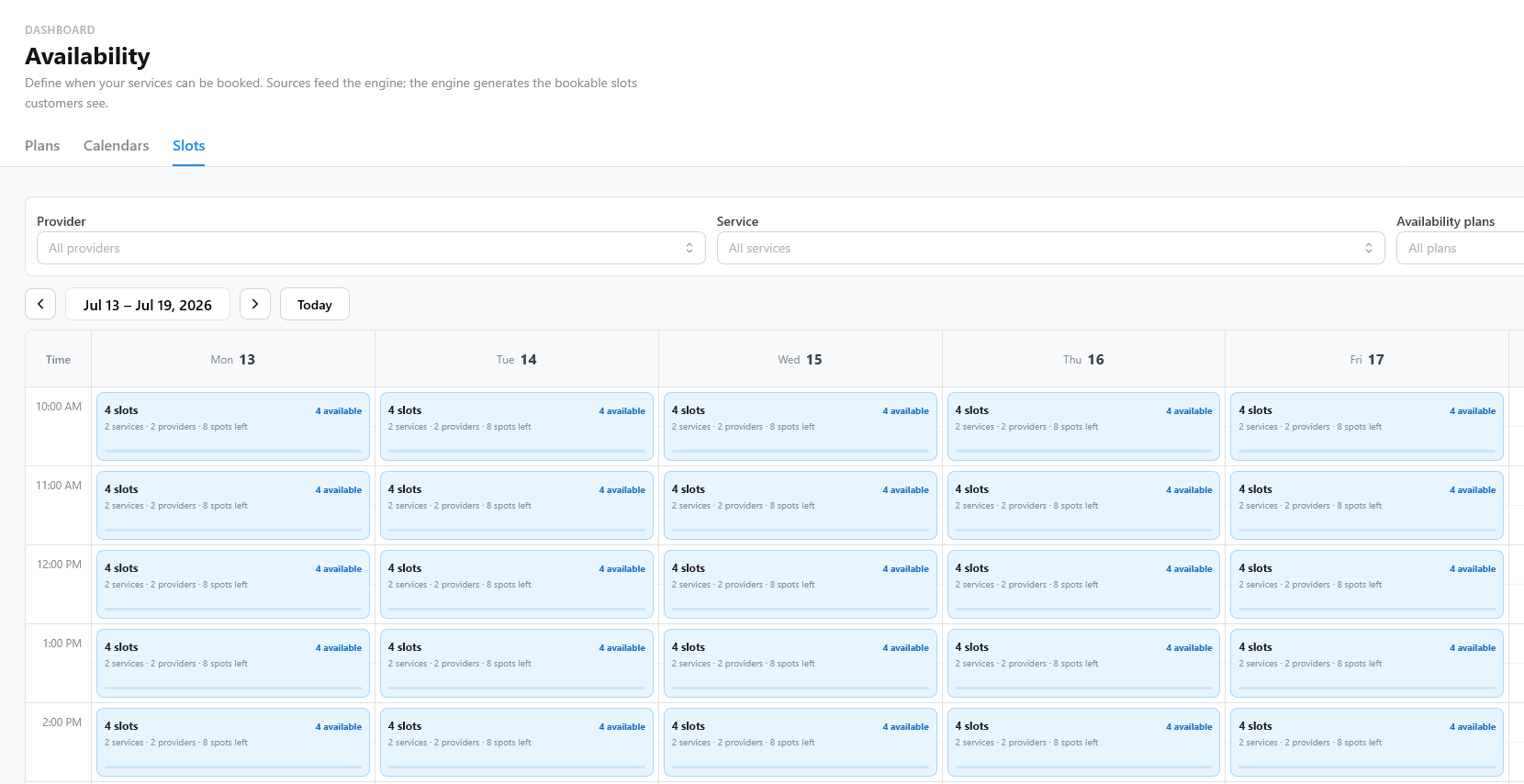
After changing source calendars, open Availability > Slots and preview the dates customers should be able to book. This confirms that the calendar events, service duration, buffers, and provider rules produce the expected slots.