Reschedule a reservation
Use Reschedule when an appointment must move to another date, time, or provider.
The reschedule action is available for pending and confirmed reservations. Cancelled reservations should be recreated instead.
Reschedule with availability
- Open Reservations.
- Select Reschedule on the reservation.
- Choose a new available slot.
- Change the provider if needed.
- Confirm the change.
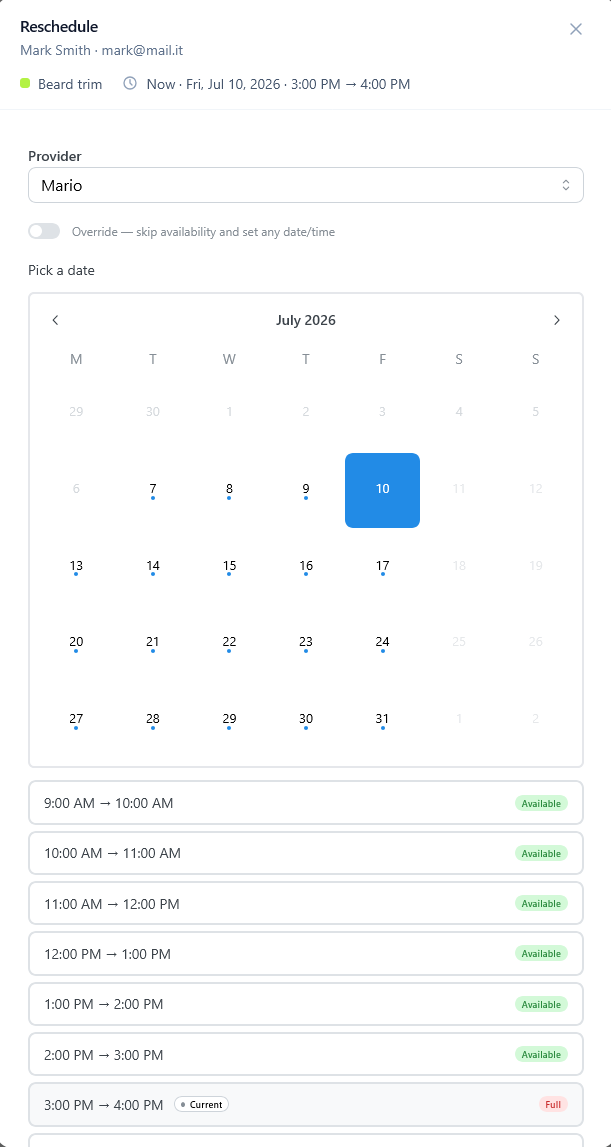
This is the recommended workflow because it uses the current availability configuration.
Exceptional changes
Administrators can use override controls for special cases outside normal availability. Use them sparingly and only when the business has already agreed to the exception.
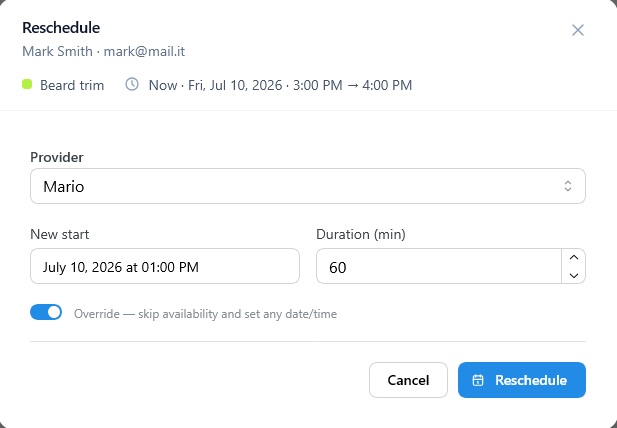
What TheBooking updates
One reschedule action can update:
- reservation date and time;
- provider assignment;
- customer and provider reschedule emails;
- reservation history;
- Google Calendar destination events;
- Zoom meetings when provider-host mapping is used;
- outbound webhooks.
Use reschedule templates when customers or providers need to see both the old and new appointment details.