Manage reservations
Use TheBooking > Reservations as the daily workspace for bookings. From here you can search reservations, open customer details, create a booking manually, approve or cancel appointments, and review payment or integration information.
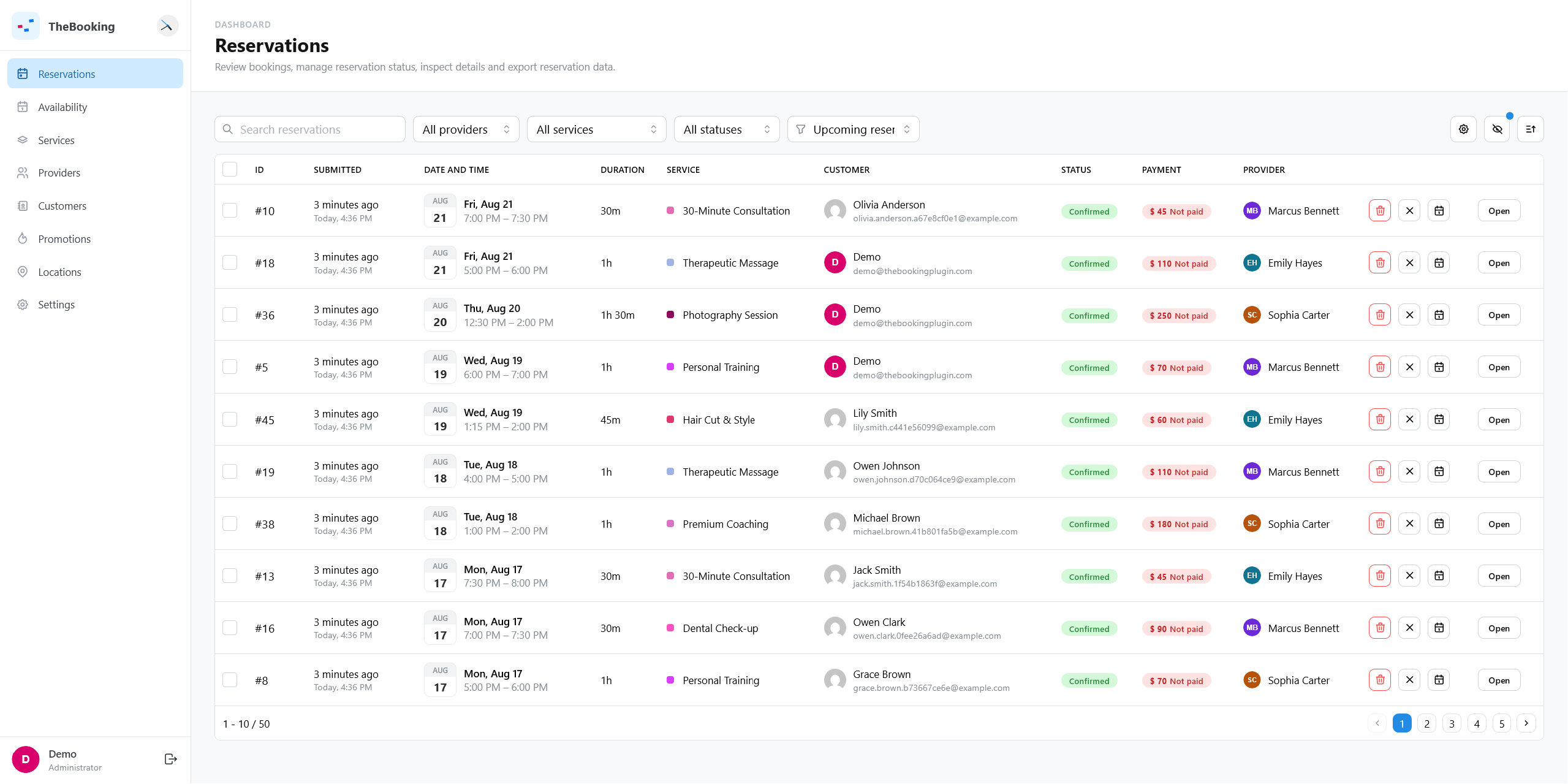
Reservation statuses
- Pending: the booking is waiting for approval or required payment.
- Confirmed: the appointment is accepted and occupies availability.
- Cancelled: the appointment no longer occupies availability.
A pending reservation that waits for an online payment and is not paid within the pending time set under Settings > Payments > General is shown as Expired. See Payments and refunds, and which reservations expire.
The available actions depend on the service settings and the current status.
Find reservations
The list shows the date and time, service, customer, status, payment, and provider of each reservation. To narrow it down:
- search by text;
- filter by provider, service, and status;
- use the quick filter for Upcoming reservations or Past reservations.
Reset filters shows the whole list again.
Export reservations
Select Export and choose Export current view (the reservations that match the current filters), Export all reservations, or, after selecting rows, Export selected. The export is an Excel workbook (.xlsx) with one sheet per service.
Each row includes the reservation ID, service, start and end date and time, customer name and email, status, payment state, currency, price, tickets, provider, creation date, and the answers to the booking form.
The export contains personal data: store and share it according to your privacy policy.
Create a reservation from the backend
Backend creation is useful for phone bookings, staff-entered appointments, or customer support.
- Open Reservations.
- Create a new reservation.
- Select the service.
- Choose one of the available slots.
- Select or create the customer.
- Confirm the booking.
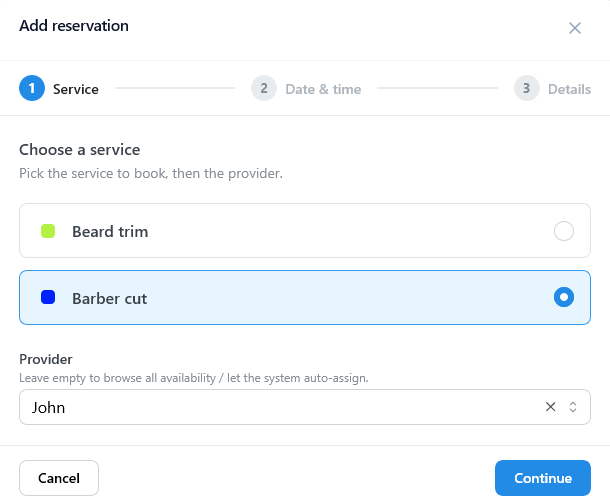
For services with automatic provider assignment, TheBooking can choose an eligible provider. Administrators can still force a provider when needed.
Edit reservation details
Open the reservation drawer to review or update customer data, service form answers, status, payment details, and other available fields.
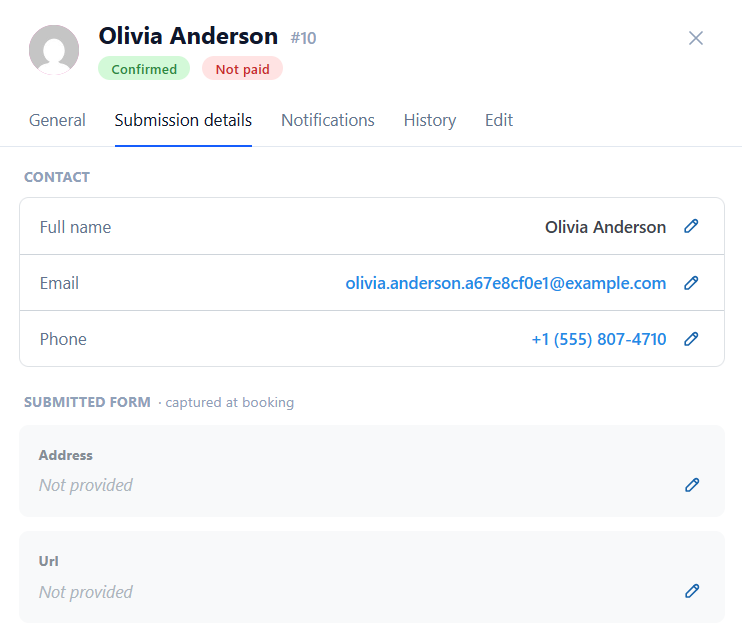
Use the dedicated reschedule flow for date, time, or provider changes. It keeps notifications, calendars, meeting links, history, and webhooks aligned with the change.
Payments and refunds
Reservations with a price show their payment state in the list: Paid or Not paid, with the amount.
- Paid online. When a customer pays through a gateway, the reservation becomes paid by itself. The Payments section of the reservation shows the gateway and the amount.
- Paid at the appointment or by other means. Open the reservation and set Payment status to Paid. Do the same for services with the Local payment requirement, where the plugin does not handle the payment.
- Refund. For a payment made online, the reservation shows Refund. After you confirm, TheBooking asks the gateway to refund the payment, marks the reservation as not paid, and stores the refund details. Refunds are not available for payments marked as paid by hand.
A reservation that waits for an online payment and is not paid in time expires. The cleanup job then deletes expired reservations automatically, unless you change their status or set them as paid first.
Customers can also pay an unpaid booking later from My bookings. See Service payment settings.
Cancel or delete
Cancellation is the normal operational action. It keeps the reservation record and history while freeing the appointment time.
Deletion removes the reservation and its history, and cannot be undone. To stop an appointment, cancel it instead.
Daily checks
Review pending reservations, failed or incomplete payments, and upcoming appointments regularly. If something looks inconsistent, open the reservation history before editing the record.