My bookings
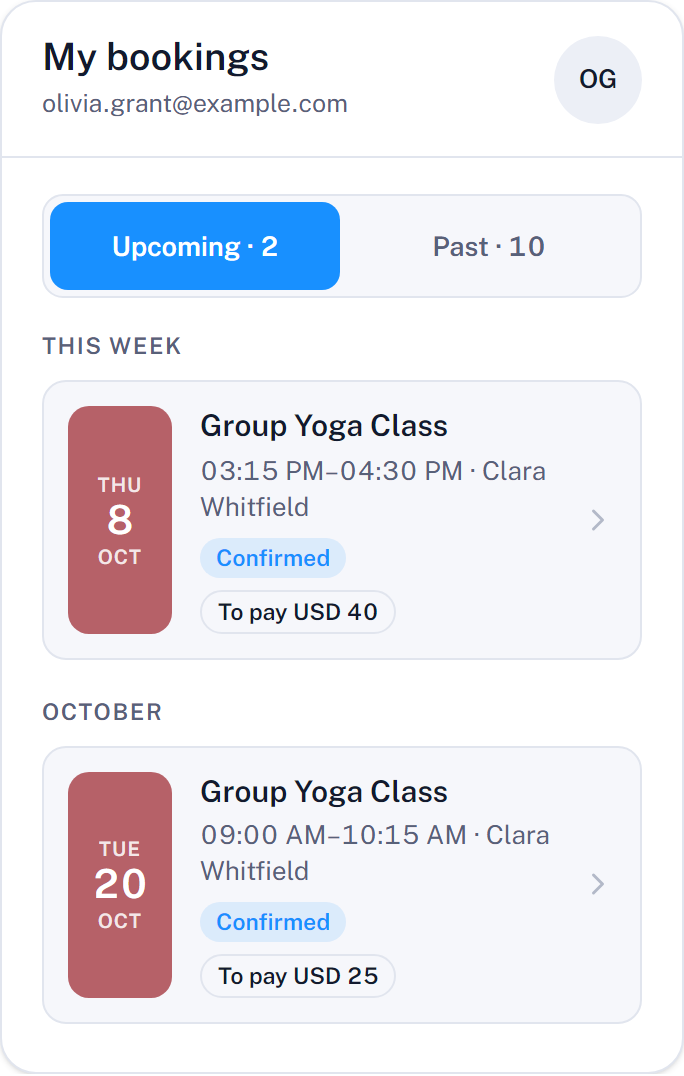
My bookings is the customer area of the widget. Customers use it to see their bookings, add them to their calendar, pay online, and cancel when the service allows it.
Set it up
- Create a page for the customer area, for example My bookings.
- Add the widget to it:
- WordPress block or Elementor widget: set the widget type to Reservations list (logged users only);
- shortcode:
[tbk-calendar view="reservations"].
- Select the page under Settings > Core > Redirects > Reservation status page.
- In the customer notifications, add the Manage or cancel reservation link from the placeholder picker. It opens this page with the customer's booking. See Notifications.
- Optional: enter Login URL under Settings > Core > Redirects, so customers who are not logged in can log in from the widget.
How customers get in
Customers reach their bookings in two ways:
- Logged in. A customer with a WordPress account sees all their bookings.
- With the personal link from an email. The customer sees only the booking of that link, without logging in. For privacy, these links stop working 30 days after the booking. After that, the customer has to log in.
A visitor who is not logged in and has no link sees a message that asks them to log in or to open the link from their confirmation email.
The list of bookings
Bookings are split into Upcoming and Past, and grouped by week and month. Each booking shows its service, date and time, provider, and status, for example Confirmed, Awaiting confirmation, Awaiting payment, or Cancelled.
On wide screens, the details of the selected booking appear next to the list. On phones, they open in place of the list.
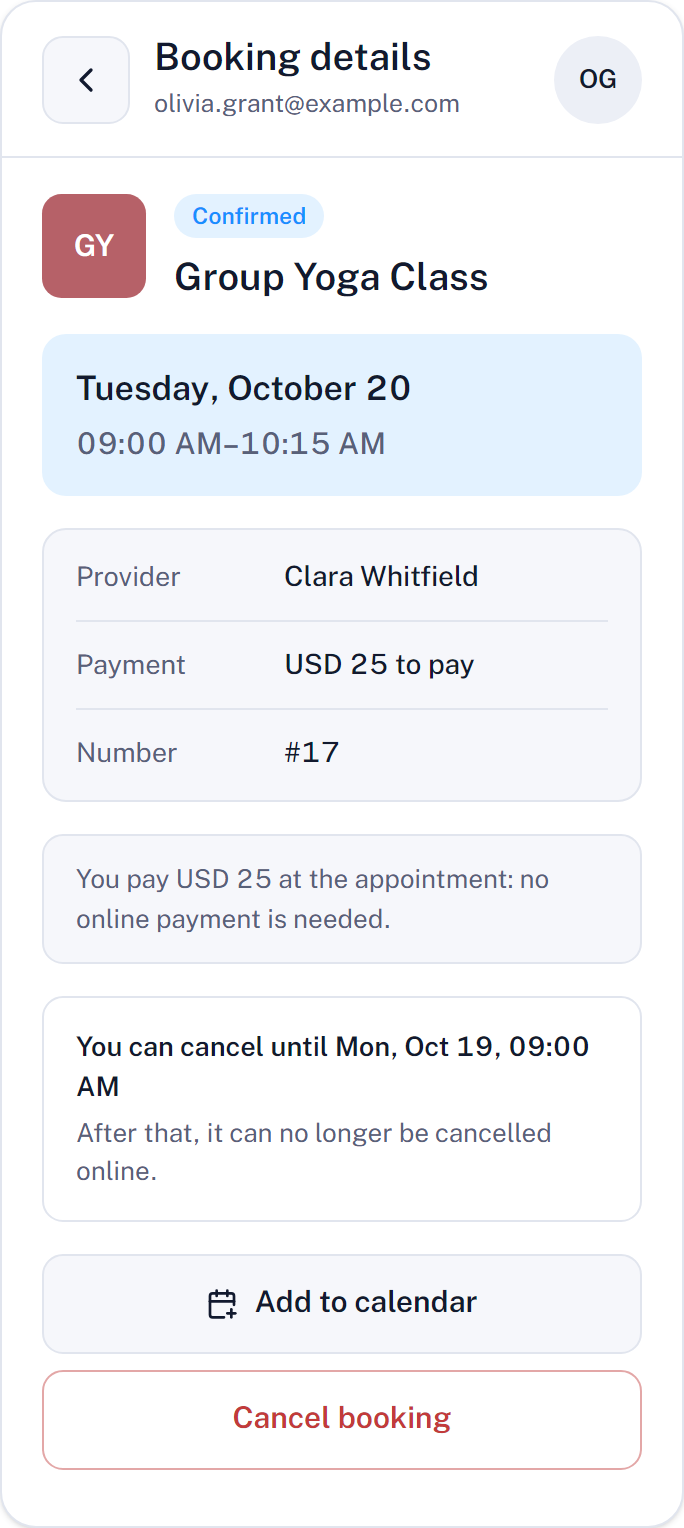
Booking details
The details of a booking include, when they apply:
- date, time, duration, provider, and number of tickets;
- the location, with a Directions link when the Google Maps integration is enabled;
- Join Zoom or Join Meet for online meetings;
- Add to calendar;
- the payment status and the amount to pay;
- the cancellation options.
Pay online
When a booking still has an amount to pay and online payments are active, the customer can pay it from the booking details with Pay the booking. When the service requires payment by a deadline, the details say by when the customer must pay to keep the booking.
After the payment, the customer returns to the page where the payment started. See Service payment settings.
Cancel a booking
When the service allows cancellation, the details show until when the booking can be cancelled. Cancel booking opens a confirmation:
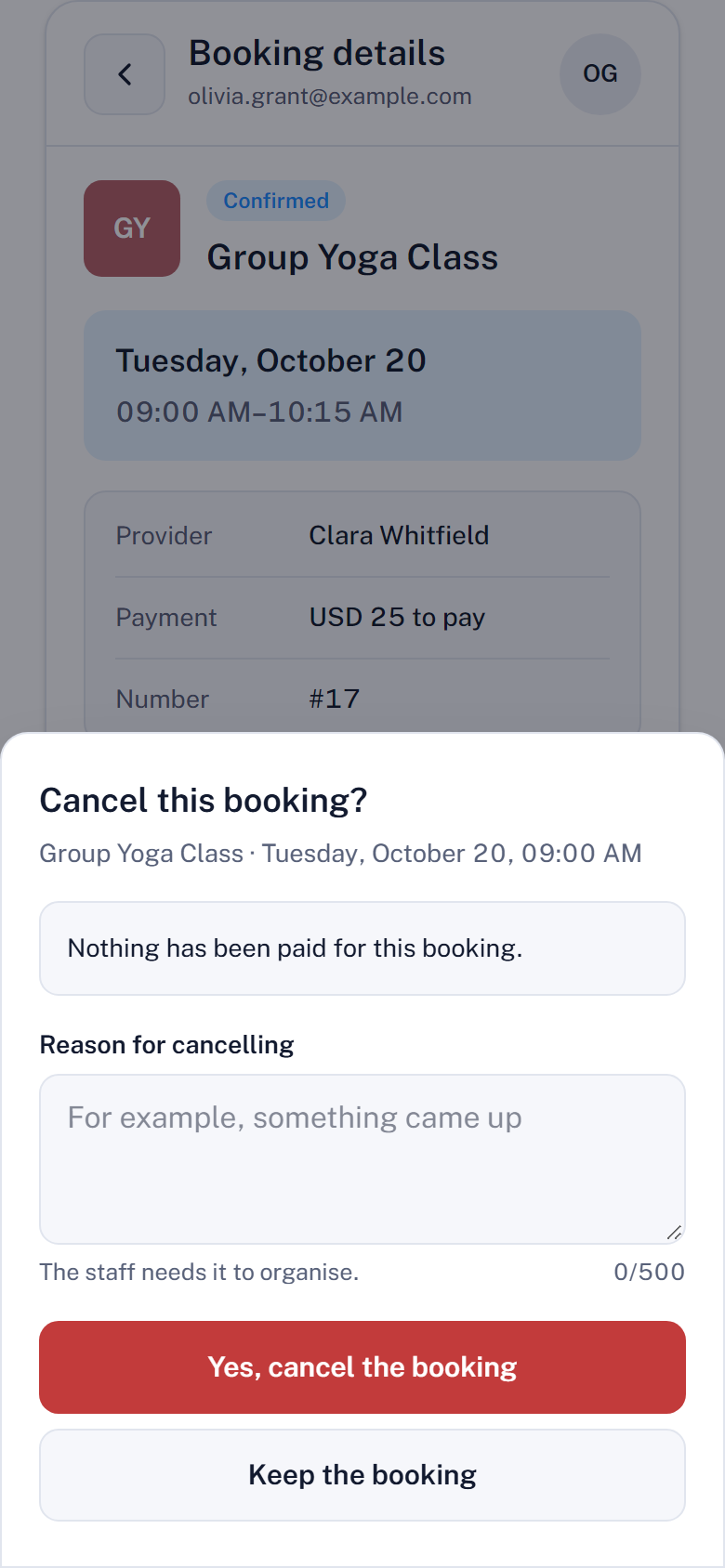
- The service decides whether the customer is asked for a reason, and whether the reason is required. See Cancellation.
- The dialog says that cancelling does not start an automatic refund. The staff refund payments from the WordPress admin.
When a booking cannot be cancelled online, for example because the deadline has passed, the details say so.
Contact details
When a booking cannot be cancelled or changed online, the widget shows how to contact you. Enter these details under Settings > Core > General:
| Setting | Shown to customers |
|---|---|
| Contact email for customers | An email address. |
| Contact phone for customers | A phone number, next to the email. |
| Contact note for customers | A short note, for example your opening hours. HTML is not allowed. |
Leave a field empty to hide it. Customers cannot move a booking to another time from the website: they contact you, and you reschedule it from WordPress.