Slots preview
Availability > Slots shows the slots that your availability plans generate, and how many places are already booked. Use it to check a new or changed plan, to find a free time for a customer, or to see who booked a slot.
A slot is one time of one service with one provider. When a service assigns providers automatically, each time is one team slot for all the eligible providers.
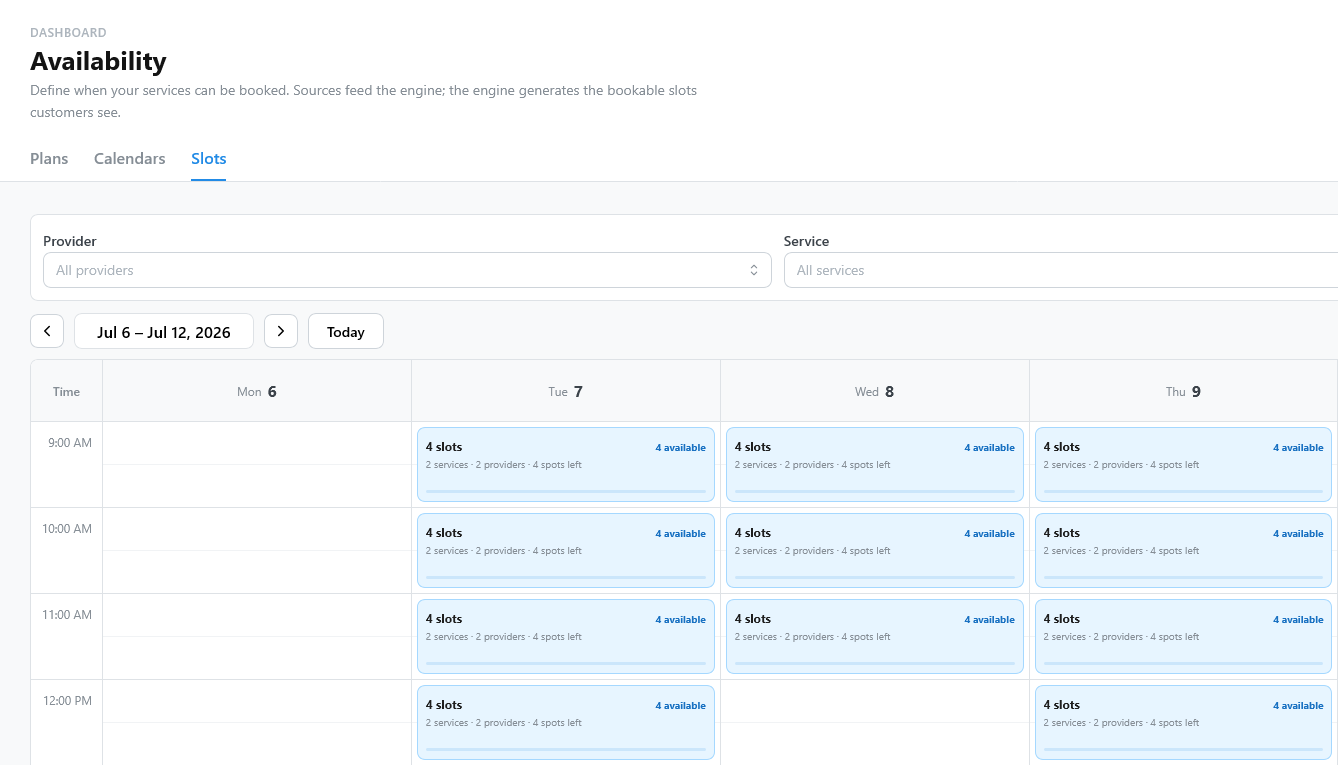
Filter the slots
Use the filters above the calendar to narrow the preview. Each filter accepts several values; an empty filter includes everything.
| Filter | Shows |
|---|---|
| Provider | The slots of the selected providers, including the team slots they are eligible for. It appears only when providers are enabled. |
| Service | The slots of the selected services. |
| Availability plans | The slots generated by the selected plans. |
Choose a view
Select Day, Week, Month, or Year, and move with the arrows or Today. Each summary counts:
- slots: the slots in that hour or day;
- available: the slots with at least one free place;
- spots left: the free places in all those slots, for example 12 for a class of 12 with no bookings.
| View | What it shows |
|---|---|
| Week | A summary for each hour of each day. Select it to list the slots of that hour. |
| Month | A summary for each day. Select it to list the slots of that day, by time; select the day number to open the day view. |
| Year | Each day with slots, colored by its free places: Available, Limited (30% or less left), or Full. The bar shows the booked share. Select a day to list its slots, or a month name to open the month view. |
| Day | Every slot of the day, grouped by Time, Provider, or Service. Use Expand all and Collapse all to open the groups. |
The list of an hour or a day shows each slot with its times, service, provider, plan, and free places. Open day view shows the same day in the day view.
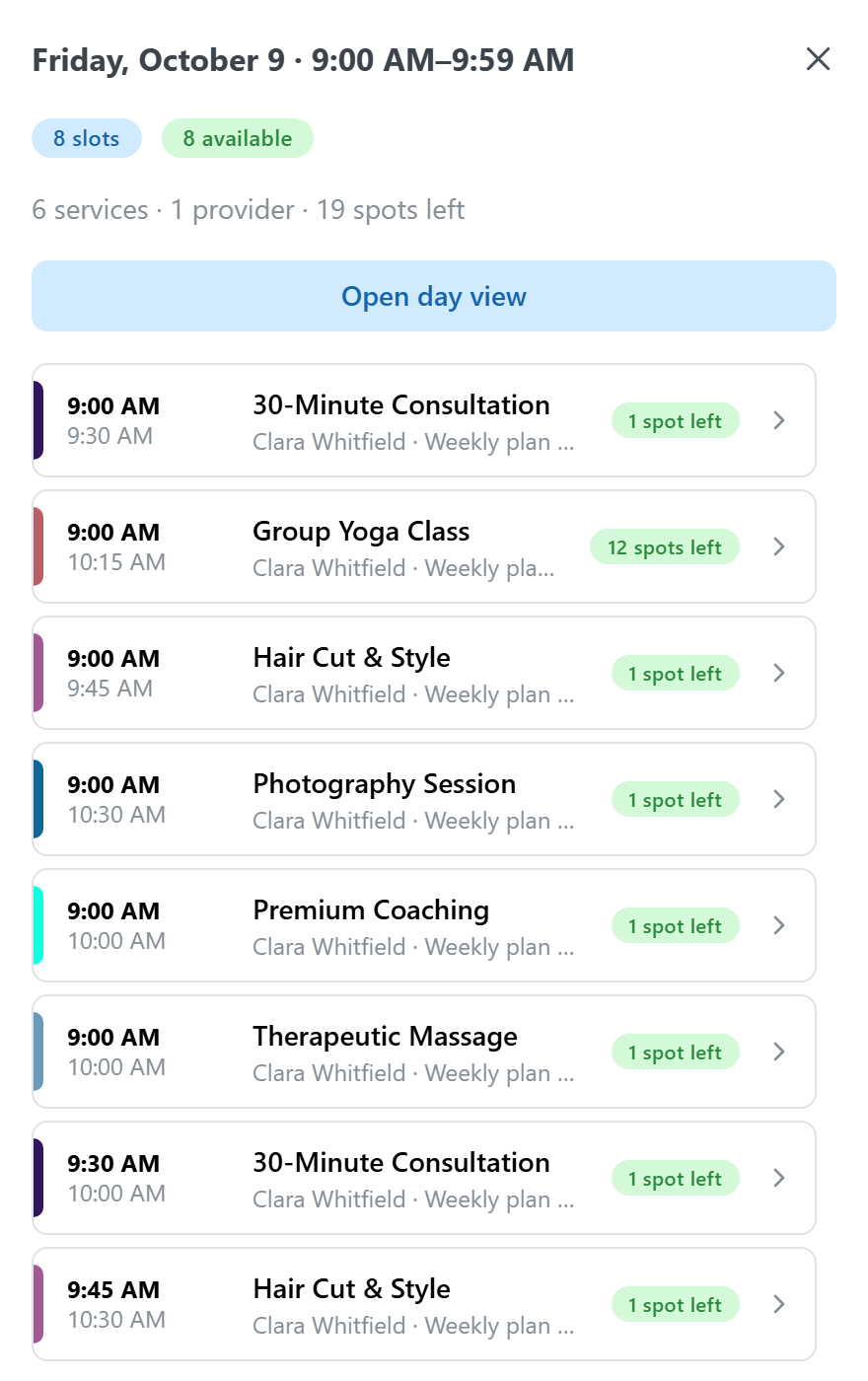
Open a slot
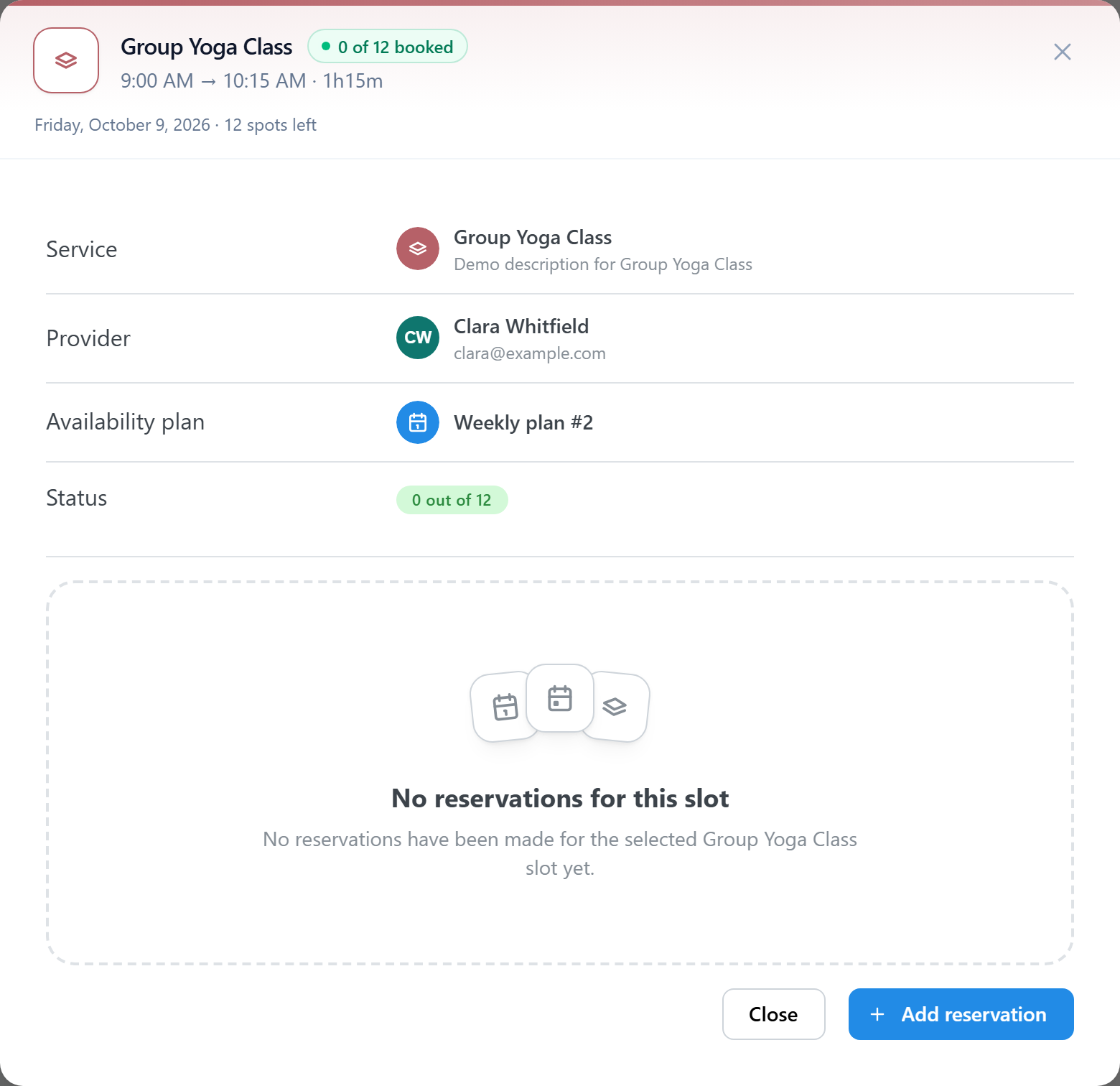
Select a slot to see its details:
- the Service, with its time and duration;
- the Provider, or Auto-assigned at booking with the number of eligible providers when the service assigns providers automatically;
- the Availability plan that generated the slot;
- the Status: Available or Booked for a slot with one place, or the booked places out of the capacity, for example "3 out of 12";
- the reservations of the slot, which you can open and manage as in Reservations.
Select Add reservation to book the slot for a customer, for example after a phone call. The button is disabled when no place is left. For a team slot, leave Auto-assign to let TheBooking choose the provider, or choose one yourself.
How the preview differs from the widget
The preview shows every slot that the plans generate. The booking widget can show fewer:
- Full slots. The preview always shows them. The widget hides them when Show booked slots is off in the frontend settings of the service.
- Slots closed by lead times. The preview shows slots that are not open yet or already closed by the lead times. The widget hides them, or shows them as read-only, according to How to treat temporally unavailable slots in the frontend settings. You can still add a reservation to these slots from the preview.
- Restrictions of the widget. A block or shortcode can limit the services and providers it shows. See WordPress block and Shortcodes.
To check what customers see, including lead times, open the page with the booking widget in a private window.