Locations
Locations are the places where appointments happen: a studio, a clinic, a meeting room. Save each place once under Locations, then assign it to the services that take place there.
Customers see the address of the location in the booking widget, on the confirmation screen, in My bookings, and in the calendar file they add to their calendar.
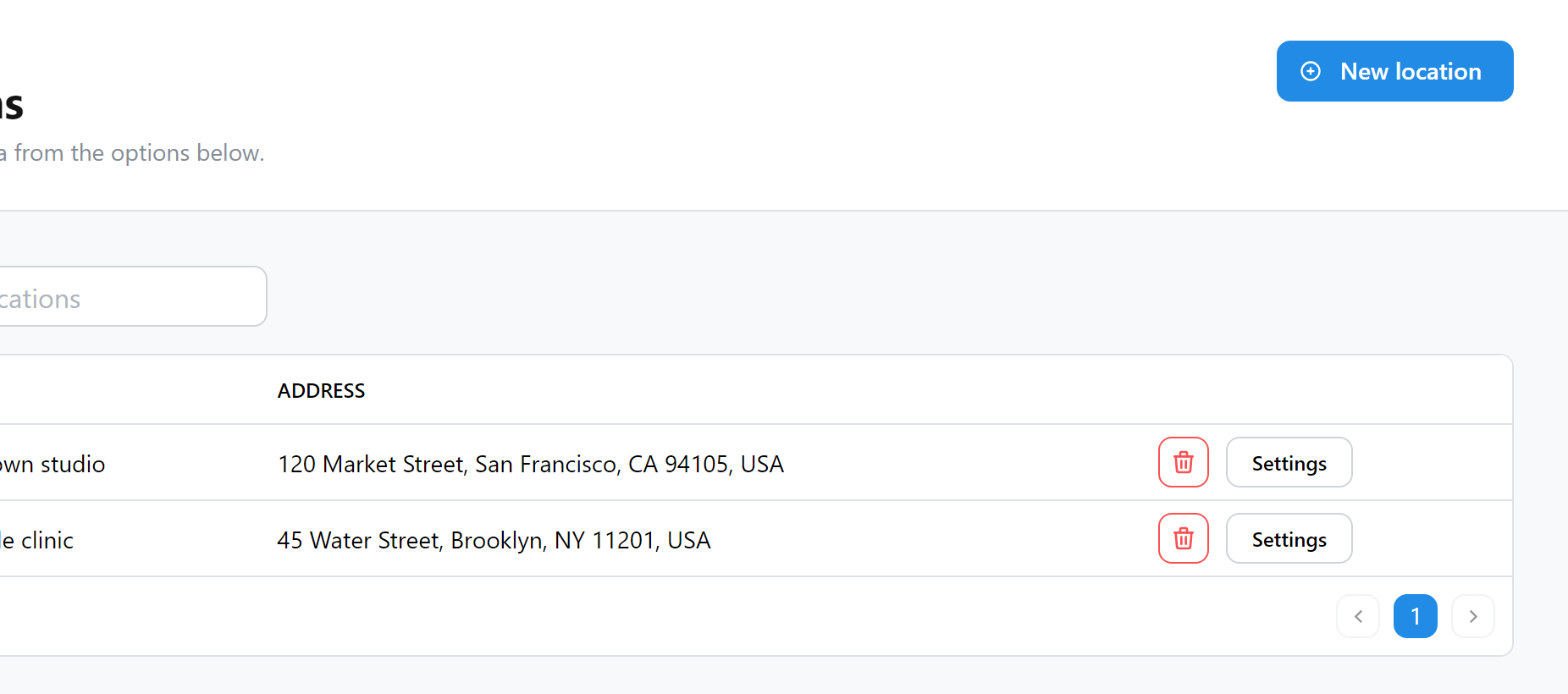
Add a location
- Open Locations and select New location.
- Enter the Name, for your own reference, for example "Downtown studio".
- Enter the Address, as customers should read it and as Google Maps can find it.
- Select Add.
Use Settings in the list to change a location, and the delete button to remove it. Only administrators can manage locations.
A service that uses a deleted location is left without one: customers no longer see where the appointment is. Assign another location to those services before you delete it.
Assign a location to a service
Open the service settings, select General, and choose the Location:
| Option | Where the appointment happens |
|---|---|
| No location (default) | Nowhere to show, for example a phone call. |
| Fixed | At the location selected in Assigned location. |
| Inherited from the booking form Address field | At the address the customer enters in the booking form, for example for home visits. The booking form of the service must include the Address field. |
For online appointments, use Zoom or Google Meet instead of a location.
When a slot comes from a Google Calendar event with a location, the event's location replaces the service location for that appointment.
What customers see
| Setting | Effect |
|---|---|
| Location visibility | When off, customers do not see the location in the widget, but it stays in the admin and in emails. |
| Show map | When on, the details step offers a map of the location, loaded only after the customer presses Show map. |
With the Google Maps integration enabled, a Directions link opens the route to the location, on the confirmation screen and in My bookings. The map also needs the integration.
In emails
Add the location to notifications with the Location (name) and Location (address) placeholders. See Notifications.