Zoom
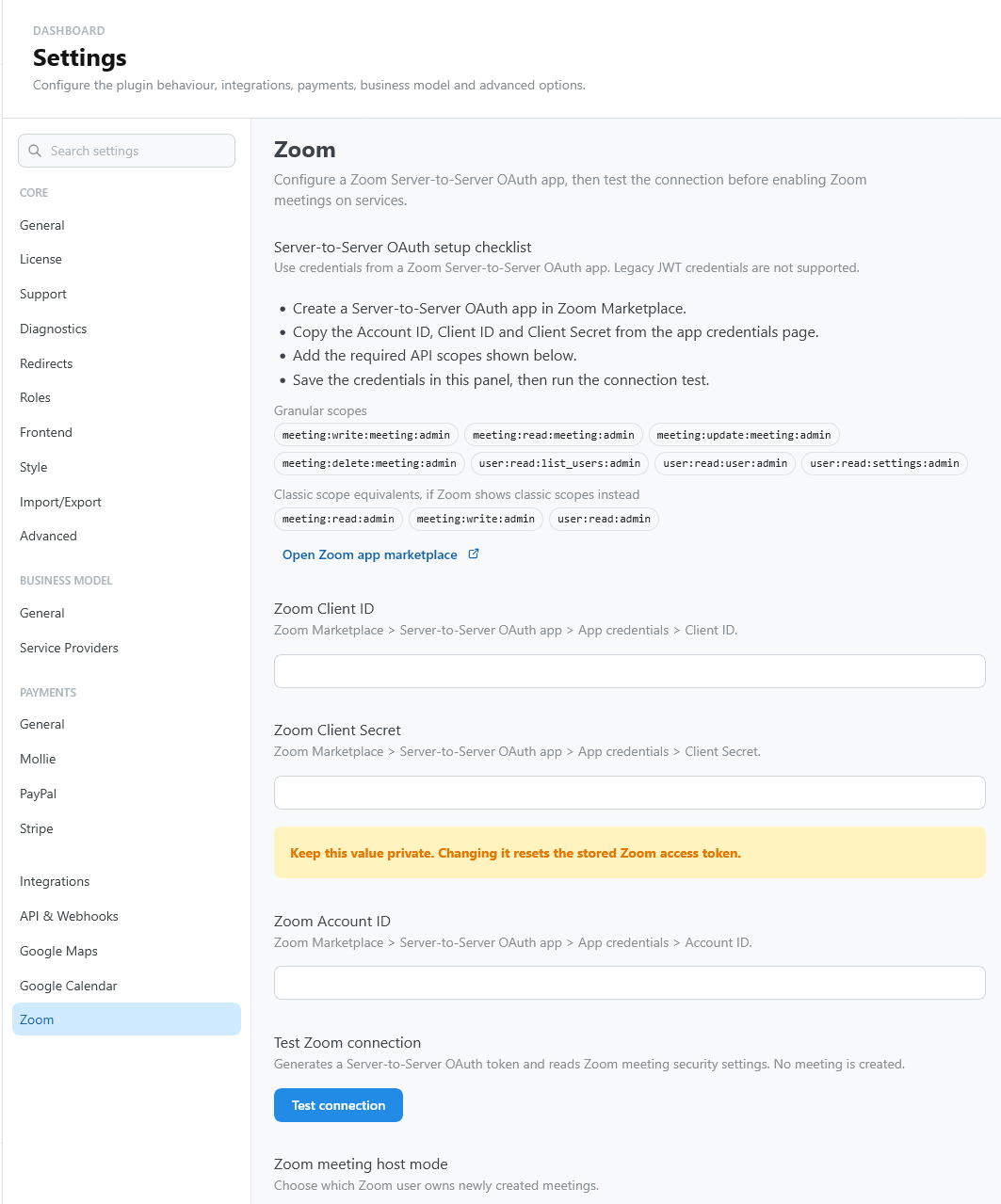
Use the Zoom integration when a service takes place online and each reservation should receive a meeting link automatically.
TheBooking connects to Zoom through a Server-to-Server OAuth app.
Enable Zoom
- Open Settings > Integrations and enable Zoom.
- Open the Zoom settings entry.
- Enter the Zoom Account ID, Client ID, and Client Secret.
- Save and verify the connection.
- Open each online service, select Zoom, and turn on Create Zoom meetings for this service.
The meeting link can then be inserted in customer and provider notifications with the available meeting placeholders.
Choose a host model
One shared Zoom host
Use this when all meetings can be created under the same Zoom account. It is the simplest setup and works well for small teams or centralized scheduling.
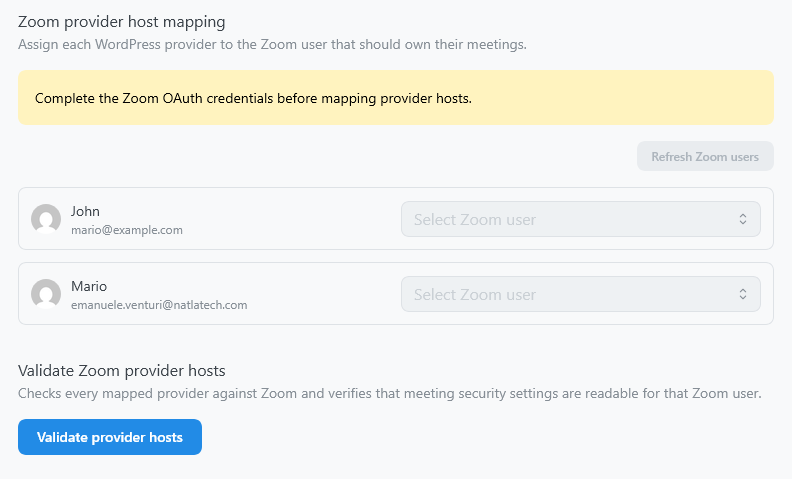
Provider-mapped hosts
Use this when each provider should host meetings from their own Zoom user.
Map each WordPress provider to the corresponding Zoom user. If a provider is not mapped, TheBooking does not silently create the meeting under the wrong host.
Required Zoom scopes
Configure the Zoom app with meeting and user scopes that allow TheBooking to create, read, update, and delete meetings, and to read Zoom users for provider mapping.
Granular scopes:
meeting:write:meeting:adminmeeting:read:meeting:adminmeeting:update:meeting:adminmeeting:delete:meeting:adminuser:read:list_users:adminuser:read:user:adminuser:read:settings:admin
Classic equivalents, when presented by Zoom:
meeting:read:adminmeeting:write:adminuser:read:admin
Rescheduling and provider changes
When an appointment moves to another time, TheBooking updates the time of the meeting. When the provider or the service of a reservation changes, TheBooking deletes the meeting and creates a new one, with a new link: send customers the new link.
Changing the host model affects new meetings and meetings recreated later. It does not migrate existing meetings automatically.