Connect a Google account
TheBooking reads and writes Google calendars through the Google accounts connected to the site. An administrator connects accounts for the site. Providers can connect their own accounts, when you allow it.
Before you start, complete the Google project setup.
Connect an account as an administrator
- Open Availability > Calendars.
- Select Connect account. With no account connected yet, select Add first Google Account.
- Sign in to Google and grant the requested Calendar permissions.
- Back in WordPress, the account appears with its calendars, none of them added yet. Select Add calendar to choose the calendars TheBooking can use.
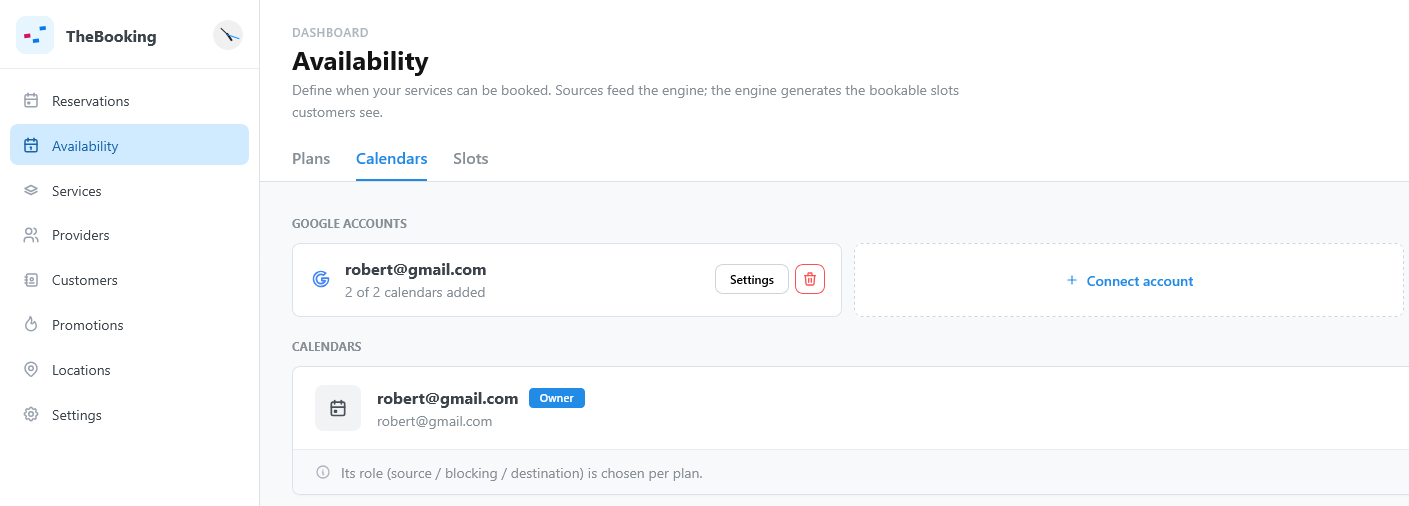
When providers are enabled, an account is assigned to the user who connects it, administrators included: the account you connect is your personal account. To share it with the whole team, open the account's Settings and set Associate with a service provider to No provider. See Google accounts and providers.
Adding a calendar only makes it available. Its role, source, blocking, or destination, is chosen in each availability plan: see Providing availability, Block availability, and Create events after reservation.
Do not bypass an unverified-app warning for production users. Keep the application in testing with explicit test users, or complete the Google publication requirements for your deployment.
Let providers connect their own accounts
- Open Settings > Google Calendar.
- Turn on Allow service providers to connect their own Google Account. The setting appears when providers are enabled, and it is off by default.
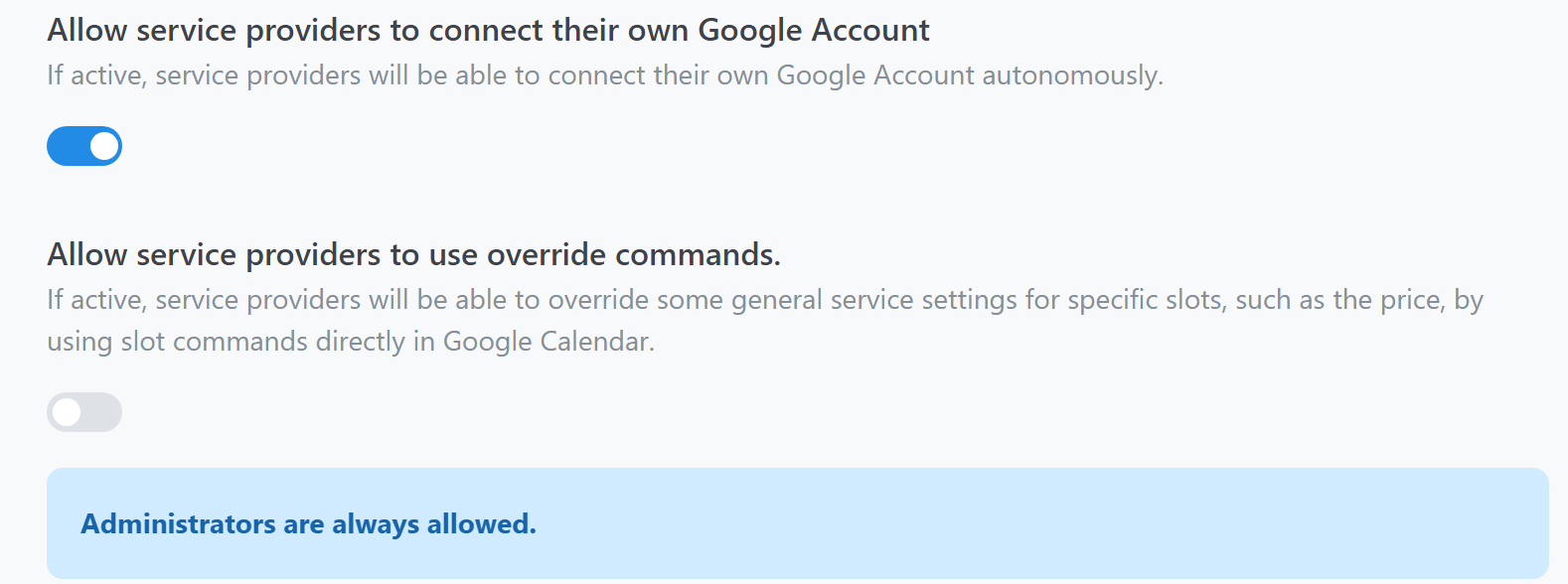
A provider then opens Availability > Calendars, selects Connect account under Your Google Accounts, and signs in to Google. The account is the provider's personal account: its calendars apply only to that provider. The provider can add its calendars, and disconnect the account.
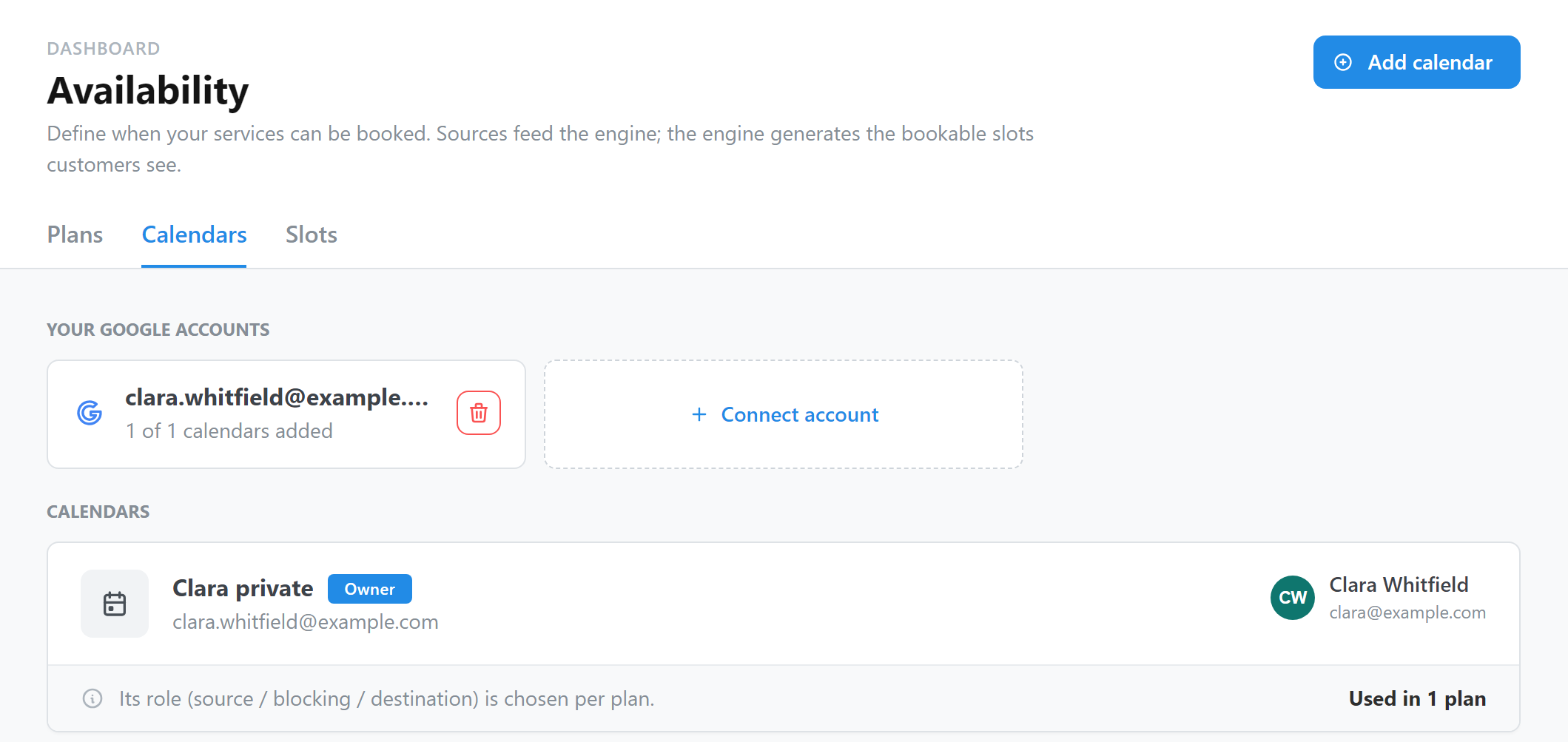
Each provider sees only their own accounts. A provider sees the Calendars tab when the setting is on, or when an administrator assigned an account to them. With the setting off, the provider sees the assigned accounts but cannot connect or disconnect accounts.
Allow it only for WordPress roles you trust: a provider's calendars change the availability of the plans that use them.
Remove an account
Administrators remove an account with the delete button of the account. A provider who can connect accounts uses Disconnect Google account. Removing an account also removes its calendars from the source, blocking, and destination roles of every plan.