Google project setup
TheBooking uses one Google Cloud project and one OAuth web client for all Google Accounts connected to the WordPress site.
Before you begin
- Serve WordPress over HTTPS.
- Sign in to the Google account that is to own the Cloud project.
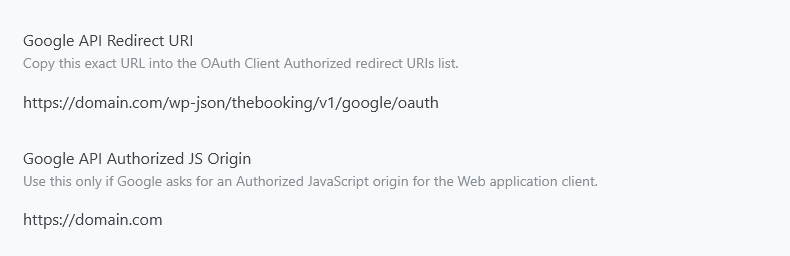
- In TheBooking, open Settings > Integrations and turn on Google Calendar. Then open Settings > Google Calendar, and keep the Google API Redirect URI and Google API Authorized JS Origin at hand.
Configure Google Cloud
- Create or select a dedicated project in the Google Cloud console.
- Enable the Google Calendar API from the API Library.
- Configure the Google Auth consent screen with an application name, support email, and developer contact.
- Add test users while the application is in testing, or complete Google's publication and verification requirements for the intended audience.
- Create an OAuth client with application type Web application.
- Add the exact authorized redirect URI and JavaScript origin shown by TheBooking. A mismatch produces Google's
redirect_uri_mismatcherror.
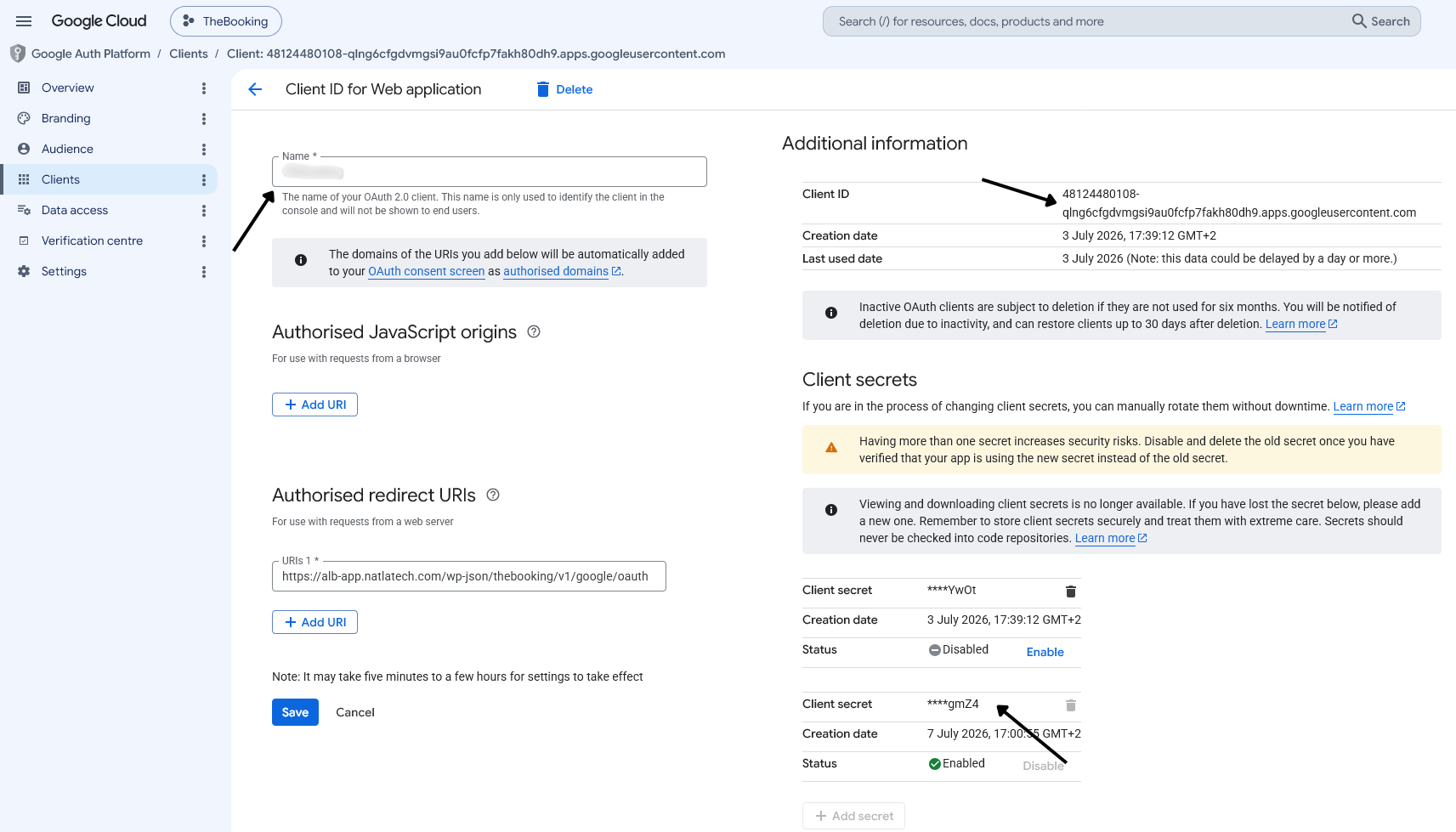
- In Settings > Google Calendar, enter the client ID in API Client ID, the client secret in API Client Secret, and the name of the application in API App Name.
Do not publish the client secret, place it in documentation screenshots, or reuse credentials from an unrelated application.
Google changes the console navigation regularly. Refer to Google's current web-server OAuth guide if a label has moved.
Settings
Settings > Google Calendar appears when Google Calendar is on under Settings > Integrations.
| Setting | What it does | Default |
|---|---|---|
| API Client ID | The client ID of the OAuth client. | Empty |
| API Client Secret | The client secret of the OAuth client. Keep it private. | Empty |
| API App Name | The name of the OAuth consent screen, which users see when they authorize the account. | Empty |
| Allow service providers to connect their own Google Account | Lets providers connect their own accounts. It appears when providers are enabled. See Connect a Google account. | Off |
| Allow service providers to use override commands. | Lets providers use slot commands in the titles of their events. It appears when providers are enabled, can manage their own availability, and can connect their own accounts. See Providing availability. | Off |
| Google Calendar refresh delay | How long, in seconds, TheBooking keeps the availability read from Google Calendar before reading it again. With 0, it reads Google Calendar at every request. A longer delay saves Google API quota, but changes in Google Calendar appear later. | 60 |
| Google API Redirect URI | The address to copy into the authorized redirect URIs of the OAuth client. | — |
| Google API Authorized JS Origin | The origin to copy into the OAuth client, only if Google asks for it. | — |
Next step
Connect a Google account and verify that its calendars are listed before assigning calendar roles.